Showing posts with label PerformancePoint. Show all posts

Error in PerformancePoint 2010...


While trying to create a new data source in PerformancePoint 2010 Dashboard Designer, I got an error message as This data source cannot be used because performancepoint services is not configured correctly. The error message is shown in the below figure. I got it after providing the server and while trying to expand the available databases.
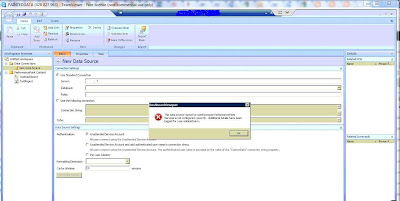


This is because that the PerformancePoint is not configured correctly. While configuring PerformancePoint, we need to configure Unattended Service Account. The error occurred due to that account is not configured correctly.
To fix that issue we need to re-configure that unattended service account correctly.
To configure unattended service account, you need a Secure Store Service Key.

Steps to fix the above issue are
  • To generate a secure store service key, go to SharePoint 2010 Central Administration →Application Management → Manage Service Applications → Secure Store Service
  • Then click on Generate New Key
  • Once that is done go to the SharePoint 2010 Central Administration → Application Management → Manage Service Applications → PerformancePoint Service Application
  • Then select Performance Point Service Application Settings
  • In the Unattended Service Account section, enter the user name and password for the account that you want to use as the unattended service account. This is the account that PerformancePoint Service will use to connect to the data source unless you use Per User Identity.
  • Click Ok and if the provided account details are correct, it will be successful.
  • Then go to the Dashboard Designer and try to create the data source again and you will not get that error message.


Decomposition Tree in PerformancePoint Sever 2010

Decompostion Tree is a new feature available in PerformancePoint 2010 and it is a very useful and smart feature for BI applications.

But there are few tricks need to be followed to have the decomposition tree in a scorecard.
  • You need to create KPIs from PerformancePoint. If you import KPIs from Analysis Sevices Cube, Decomposition Tree will not work.
  • Need to provide values from a Measure. If it is provided from a MDX expression Decomposition Tree will not work.
  • Therefore if you need to do some calculations for the KPI, create a Calculated Member which having the required calculation and set the Parent Hierarchy of the calculated member as Measures.
  • Then you can use that calculated member as a measure to create the required KPI and the Decomposition Tree will be available for it.
  • Calculation property for the Actual and the Target should be Data value.
  • Also to enable the Decomposition Tree feature in the Scorecard, Silverlight need to be installed in the client machine.
  • Also when I added those created KPIs by creating a blank scorecard from PerformancePoint, Decomposition Tree did not work. But when I created the scorecard by importing KPIs from analysis service and modified the KPIs as above, then the Decomposition Tree works fine.

The URL is not available, does not reference a SharePoint site, or you do not have permission to connect...

When I tried to connect to a SharePoint URL in dashboard designer options, it prompt a message saying "The URL is not available, does not reference a SharePoint site, or you do not have permission to connect"


When I checked the Event Log under Administrative Tools -> Event Viewer -> Windows Logs -> Application, message says that
"Cannot open database "WSS_Content_
GuidOrGivenName" requested by the login. The login failed.
Login failed for user 'domain\username'."

The reason is
that the the Service Account under which the PerformancePoint Service runs, does not have permissions for the SQL Server Content database of the SharePoint Web Application.

To fix this issue , add the domain user which uses to run PerformancePoint services as the database owner of the Content database of the web application (
WSS_Content_GuidOrGivenName).

After that you will not get that message...

Some KPI Values and Indicators are not shown in a PerformancePoint Scorecard...

While creating some scorecards for BI application, I faced a strange problem. That is, in that scorecard values and the indicators are not shown for some KPIs and others are ok.
The approach I used to create the scorecard is to Import SQL Server Analysis KPIs and after that add some KPIs from PerformancePoint. But the values and the indicators for the KPIs which are created by the PerformancePoint were not shown as shown in the below figure. PPSKPI is the KPI created in PerformancePoint.


I checked the procedure to create that scorecard and KPIs, and found it is ok. Finally I was able to find the reason for that issue. It is a very simple reason.
The reason is that the column names of those two KPI types are different.

For the KPIs which were imported from Analysis Services, those column names are Value and Goal and Status. KPIs which were created from PerformancePoint, those column names are Actual and Target.
When those column names were changed to Value and Goal and Status, the problem was solved...

Create PerformancePoint Filter and Set a Default Value for the Filter

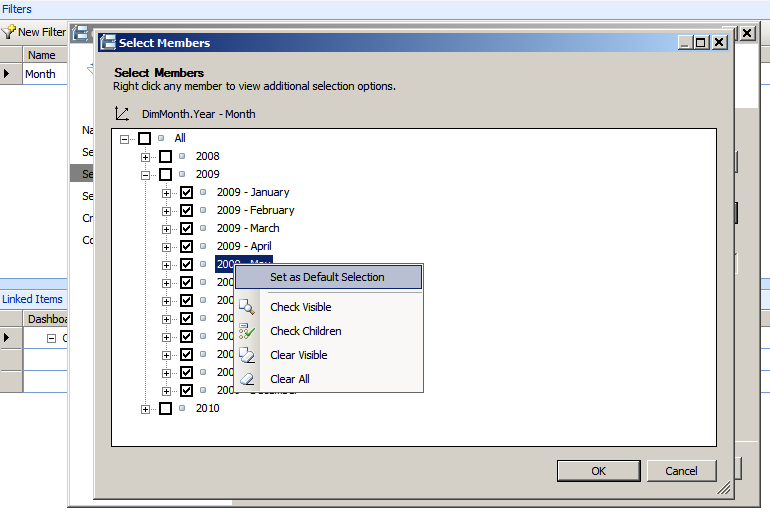
We can create a Filter for a PerformancePoint page easily. When you open the Dashboard page in PerformancePoint Dashboard Designer, you can see the Filters tab. Just click on it and you can see Filters there. Then click on New Filter as shown in the below figure.


Follow the wizard by providing a name and the data source, then you will get a screen to select members for the filter as shown in the below figure.


In the shown figure Filter members are already selected. But you can set the default value for the filter while selecting the filter members. To do it, just select the member value and right click on it. Then you will get a screen as shown below.


Select Set as Default Selection as shown in the above figure and after that you will get a screen as below showing the default selection.


Then just follow the other steps to add the filter...

Redirect to a Different page from a Web Part Zone in SharePoint

Recently I had a problem with redirect to an another SharePoint page.
The problem was when I try to click on a Report publish from the PerformancePoint, it opens the redirected page in the same zone, not in the same window.
To overcome that I used a javascript. The approach I used was, have .aspx page which contains the javascript to redirect to the requested url and call that .aspx by passing a parameter when the report is clicked. The aspx page is located in the Root of the PPSMonitoring site. You can find the path of the Root folder by right clicking on the PPSMonitoring site in IIS and select Explore as shown below.


Then add the redirect.aspx page (according to my sample) which contains the below code.


What this javascript do is it gets the parameter passed by the clicked page and set the redirected url. Then it set the parent page url as the redirecting page url. The reason to set the parent url is that when the request comes from a Zone, it consider the Window as the Zone. Therefore we have to set the redirecting url to the Parent page url.

Warnings while Configuring PerformancePoint Server 2007 in Windows Server 2008 R2

While configuring PerformancePoint Server 2007 in Windows Server 2008 R2, I got two warnings even though those patches for the SQL Server were installed.
Those warning are
  • SQL Server Native Client 9.0 (SP2) is missing
  • SQL ADOMD.NET 9.0 (SP2) missing
Those patches were installed using the Feature Pack for Microsoft SQL Server 2005 - February 2007 release in the http://www.microsoft.com/downloads/details.aspx?familyid=50b97994-8453-4998-8226-fa42ec403d17&displaylang=en link.

Intalled patches are
  • sqlncli_x64.msi
  • SQLServer2005_ADOMD_x64.msi
  • SQLServer2005_ASOLEDB9_x64.msi
  • SQLServer2005_XMO_x64.msi
I got warning for the sqlncli_x64.msi and SQLServer2005_ADOMD_x64.msi.

I was able to resolve that issue by installing the sqlncli_x64.msi and SQLServer2005_ADOMD_x64.msi from the Feature Pack for Microsoft SQL Server 2005 - December 2008 release in the http://www.microsoft.com/downloads/details.aspx?FamilyID=536fd7d5-013f-49bc-9fc7-77dede4bb075&displaylang=en link.

It is better to install others from this release too...


Enabling Java scripts and Ajax in IE for Windows Server 2008 R2

I had a problem while run the PerformancePoint Server 2007 Dashboard Designer using Internet Explorer in Windows Server 2008 R2. That is the Run button and the Go button are not visible for the Dashboard Designer page.
Also I had some problems for the SharePoint Server 2007 in the same OS and with the same browser. In sharepoint, those javascripts were not working.

Those errors occurs due to the security settings provided by the OS.
To solve those issues go to the Server Manager.
Then as shown in the below figure, you can find Configure IE ESC under the Security Information.


Click on it and select Off form those selections as shown in the below figure.


Then click Ok and check your sites.
It will works...

Unable to connect to server in PerformancePoint Server 2007

While I am trying to connect to the server in PerformancePoint Dashboard Designer, I got a message saying "Unable to connect to server".
There may be two resons.
* The first reason is the services required to run the PerformancePoint server are stopped in the
Internet Information Services (IIS) Manger Application Pools.
Therefore to fix that issue, first go to the IIS Manger and select Application Pools.
Then the services run in the Application Pools will be shown and you will see the services
related to PerformancePoint server (PPSMonitoringCentral, PPSMonitoringPreview,
PPSMonitoringWebService) are stopped.
Start those services by click on it and selecting Start in the Application Pool Tasks.

* The other reason is the SQL Server Service is not started.
To fix it open the Sql Server Configuation Manager and start the relevant Sql Server Service

After that you will be able to connect to the server...

Dashboard was not deployed...

While am trying to preview a dashboard in PerformancePoint Server, it shows the detail that "Dashboard was not Deployed".
The reson for that issue is we don't have permissions to preview it.

To fix it follow below steps.

  • Go to IIS-->Local Host-->Sites
  • Click on PPS Monitoring
  • Right click on Preview and click Edit Permissions.
  • Then you will get the Preview Properties. Click on the Security tab and click on the Edit button.
  • Then add the current user by allowing Full Control.
  • After that that click Ok and you will be able to preview the dashboard...
That will fix the issue which I mentioned on top of the article.

Problem with Publishing PerformancePoint Dashboard to SharePoint site

If you get and error message in SharePoint site after publishing PerformancePoint Dashboard to SharePoint site that might occur due to the problems with configuring PerformancePoint monitoring server.
When you configuring the PerformancePoint monitoring server, you should provide the URL of the SharePoint site which you use to display the PerformancePoint Dashboards. Then the configuration process will modify the web.config file of the relevant SharePoint Site

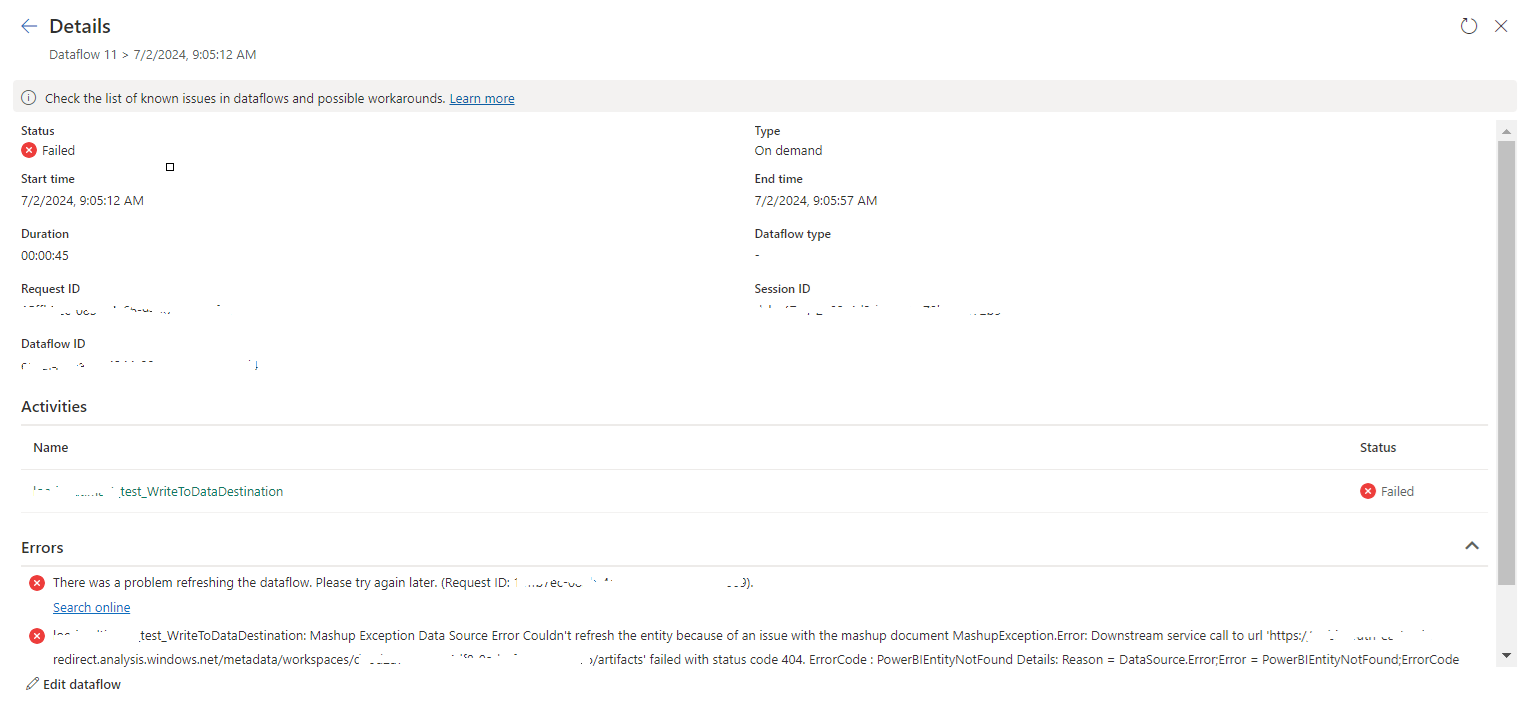
tablename_WriteToDataDestination: Mashup Exception Data Source Error Couldn't refresh the entity...

 Once a Dataflow is created and published on Fabric, got the below error while refreshing the Dataflow. tablename_ WriteToDataDestination: M...