Showing posts with label Power BI. Show all posts

How to add a logo image to a Power BI report in Microsoft Fabric

There is no way to add an image directly to a Power BI report in Microsoft Fabric.
But, you can achieve it using an alternative approach as below.

  • Add a Blank Button

  • Go to the Format button section, then expand the Style under the Button section.


  • Then expand the Fill section


  • Click on Browse and select the image to be added.


  • Use the Image fit option as Fit


Hope this will be helpful...


Load data from Microsoft Dynamics Business Central to PowerBI

To load data from Microsoft Dynamics Business Central to PowerBI, you can use the PowerBI desktop application and follow these steps:

  1. Open PowerBI Desktop and click on "Get Data" in the Home tab.
  2. From the Get Data menu, select "OData Feed" and click "Connect".
  3. In the OData Feed dialog box, enter the URL of your Business Central OData endpoint. The URL format should be: https://<Business Central URL>/api/v1.0/companies(<Company ID>)/. Replace "<Business Central URL>" with the URL of your Business Central instance and "<Company ID>" with the ID of the company you want to connect to.
  4. Enter your Business Central credentials to connect to the OData endpoint.
  5. In the Navigator dialog box, select the tables and columns you want to import into PowerBI, and click "Load".
  6. The selected data will be loaded into PowerBI and you can start creating your reports and visualizations.

Note that you will need to have the correct permissions to access the data in Business Central. If you encounter any issues, you may need to check with your Business Central administrator to ensure you have the correct access rights.

How to Embed SSRS/ Power BI Report in ASP.NET Core Application...

Since we cannot use Web Forms with ASP.NET Core applications, it is not possible to use the Report Viewer control to embed SSRS reports.
Therefore as an alternative approach, I have used IFRAME to embed SSRS report in ASP.NET Core application.

There are slight differences when we use the IFRAME for SSRS Reports and Power BI reports deployed on Power BI Report Server. The approach use for the SSRS reports can be used for the SSRS reports deployed on SQL Server Report Server as well.

SSRS Reports:


PowerBI Reports:


Hope this will be helpful.

COVID-19 Dashboard


Please click here to view the dashboard created to track the COVID-19 situation.
Dashboard is created using Microsoft PowerBI and CoronaVirus REST API v1.0 is used as the data source.
Reference for CoronaVirus REST API v1.0: https://www.programmableweb.com/api/coronavirus-rest-api-v10

Power BI Schedule Refresh error...

There was an error thrown in PowerBI Schedule Refresh as

[0] -1055784932: Credentials are required to connect to the SQL source. (Source at xxxx;xxxxx.). The exception was raised by the IDbCommand interface.
[1] -1055784932: The command has been canceled.. The exception was raised by the IDbCommand interface.
[2] -1055784932: The command has been canceled.. The exception was raised by the IDbCommand interface.
[3] -1055784932: The command has been canceled.. The exception was raised by the IDbCommand interface.
[4] -1055784932: The command has been canceled.. The exception was raised by the IDbCommand interface.
[5] -1055784932: The command has been canceled.. The exception was raised by the IDbCommand interface.
[6] -1055784932: The command has been canceled.. The exception was raised by the IDbCommand interface.
[7] -1055784932: The command has been canceled.. The exception was raised by the IDbCommand interface.


I checked the credentials of the data source and everything is fine.
I referred the below link
https://community.powerbi.com/t5/Report-Server/Error-when-Refreshing-SQL-Data/td-p/317866/page/3

As mentioned in the above link,
"For each data source, check the name of the server and the database, it seems to be case sensitive when deployed to the server, but not when using the Power BI Desktop."

I had the same scenario and in my case it was with the database name.
I changed all the database names to exactly same name based on the case sensitivity and deployed the report.
After that schedule refresh is working fine.

Unable to load the data model for your power bi report...

There was a Power BI report which was working fine and suddenly it throws the below error
"Unable to load the data model for your Power BI report".


Actually there was no change applied on the server.
As suggested in some posts, I checked below scenarios and both of them worked.

1. Download the PBIX file and upload it back again. Actually I uploaded it with a different name and report is working fine.

2. Then I renamed the existing PBIX report and after that it worked fine as well. Again I renamed it to the original file name and the report is working fine after that as well.

Reference:
https://community.powerbi.com/t5/Report-Server/Unable-to-load-the-model-for-published-report/td-p/439131

Hope this will be helpful.

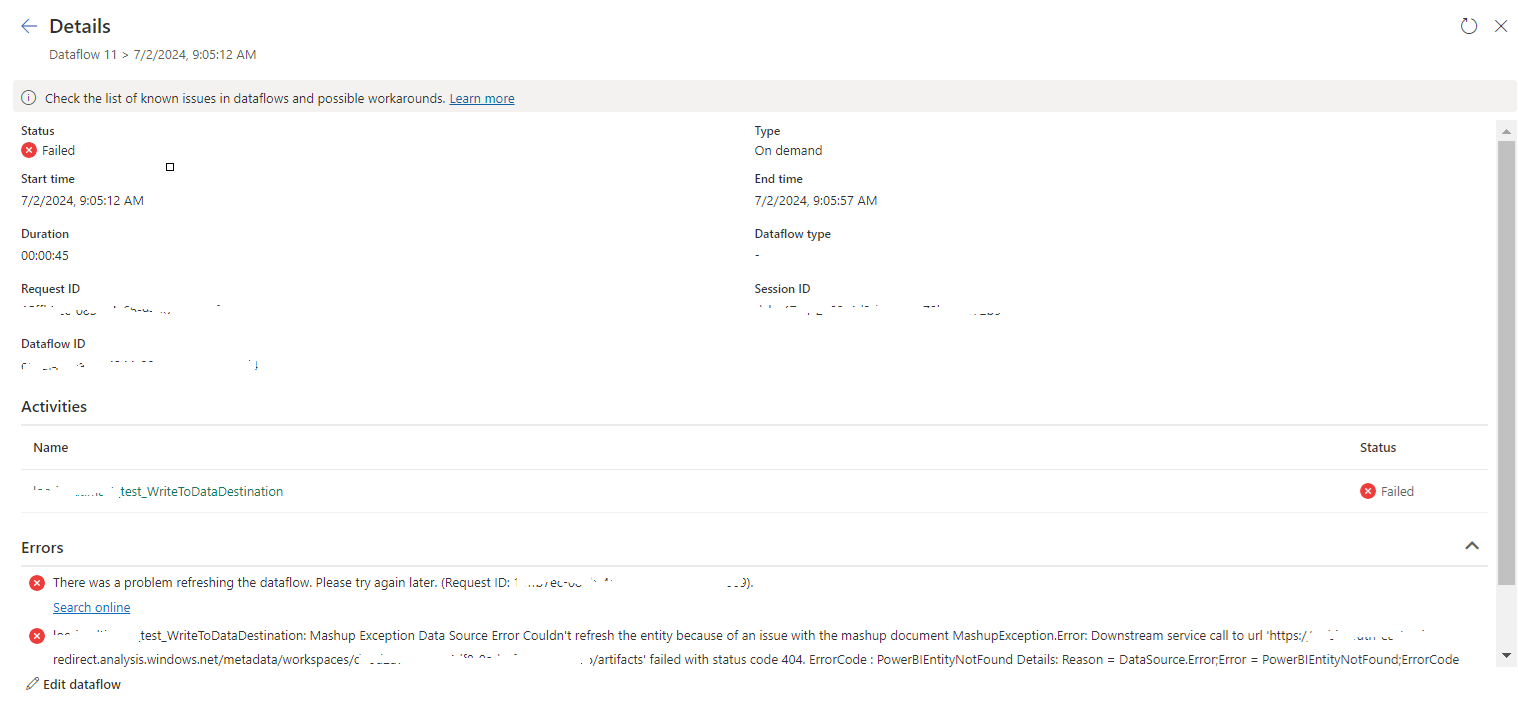
tablename_WriteToDataDestination: Mashup Exception Data Source Error Couldn't refresh the entity...

 Once a Dataflow is created and published on Fabric, got the below error while refreshing the Dataflow. tablename_ WriteToDataDestination: M...