Showing posts with label Snowflake. Show all posts

How to connect to a Blob container using Snowflake

To connect to a Blob container in Snowflake, you will need to create a stage that points to the container. A stage represents a location where data files are stored, either within Snowflake or externally.

To create a stage that points to a Blob container in Snowflake, you can use the CREATE STAGE statement. Here is an example of how to create a stage for a Blob container in Azure Storage:


CREATE STAGE my_stage 
TYPE = AZURE_BLOB_STORAGE 
URL = 'https://myaccount.blob.core.windows.net/mycontainer'
CREDENTIALS = (AZURE_SAS_TOKEN =
'my_sas_token');

Replace my_stage with the name you want to give to the stage, myaccount with your Azure Storage account name, mycontainer with the name of the Blob container, and my_sas_token with a Shared Access Signature (SAS) token that grants Snowflake access to the container.

Once you have created the stage, you can use a COPY statement to load data from the Blob container into a Snowflake table. Here is an example of how to load data from a CSV file in the Blob container into a Snowflake table:

COPY INTO my_table FROM @my_stage/myfile.csv
FILE_FORMAT = my_file_format;

Replace my_table with the name of the Snowflake table, my_stage with the name of the stage you created, myfile.csv with the path to the file in the container, and my_file_format with the name of a file format object that describes the format of the data in the file.

Hope this will be helpful.

How to schedule a job in Snowflake

 In Snowflake, you can schedule a task using a combination of the following components:

  1. A Snowflake stage that points to the location of the file or files to be loaded or unloaded.
  2. A Snowflake file format object that describes the format of the data in the file.
  3. A Snowflake copy statement that moves the data from the stage to a table or vice versa.
  4. A Snowflake task that is created to execute the COPY statement at a specified frequency.

To create a task, you can use the CREATE TASK statement. Here is an example of how to create a task that executes a COPY statement every hour:

CREATE TASK my_task WAREHOUSE = my_warehouse SCHEDULE = '1 hour' AS COPY INTO my_table FROM @my_stage FILE_FORMAT = my_file_format;

You can also use the Snowflake web interface to create and schedule a task. To do this, navigate to the "Tasks" menu in the "Workload Management" section of the Snowflake UI and click the "Create Task" button. Then, enter the details of your task, including the name, frequency, and the COPY statement to be executed.

Hope this will be helpful.

Concat columns with NULL values in Snowflake SQL

If you use concat functions in Snowflake, if there any of the column is having a NULL value, it returns the value as NULL.

To avoid that, we can use array_construct and array_to_string as below: 

select array_to_string(array_construct([column1], [column2], [column3]),'|') 

If the values for Column1 = 'abc', Column2=NULL, Column3 ='xyz', then the above query return the output as 'abc||xyz'


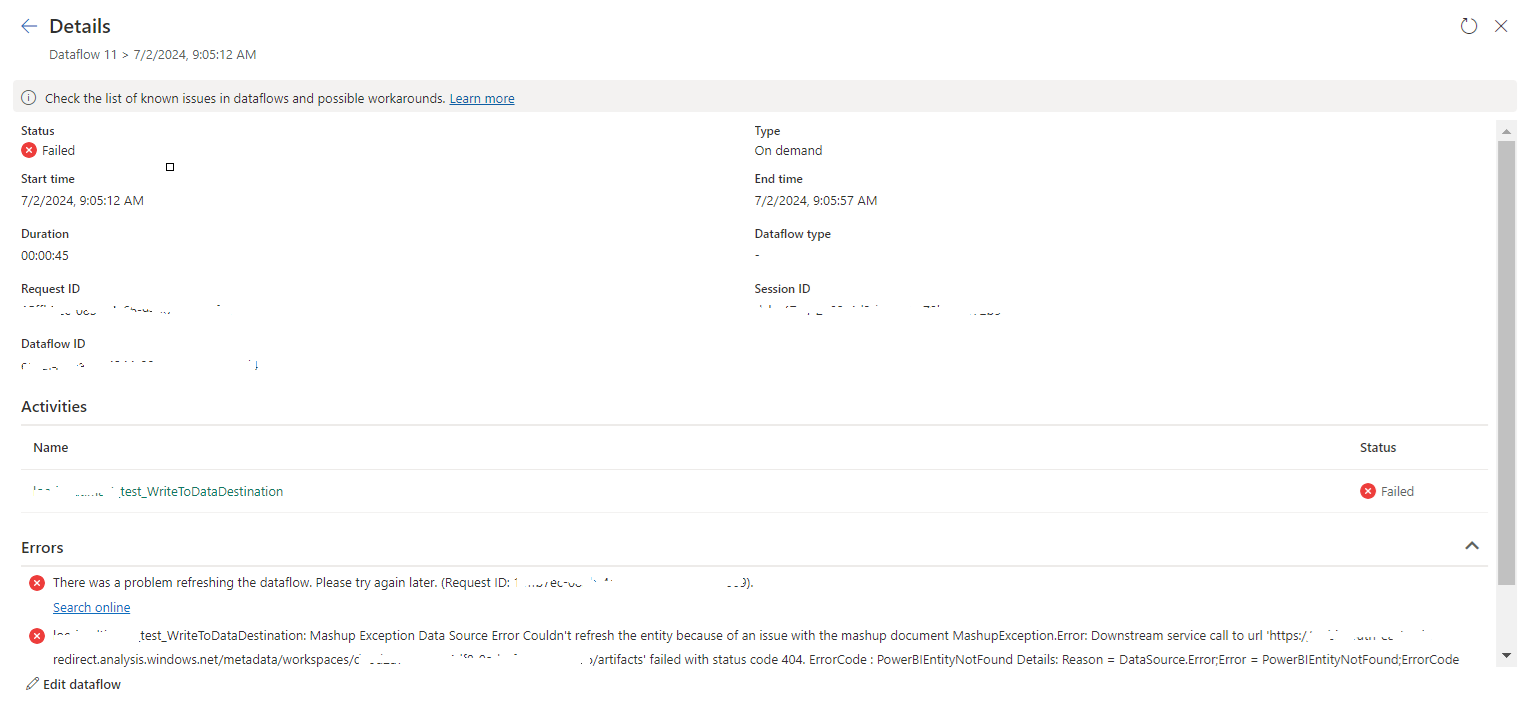
tablename_WriteToDataDestination: Mashup Exception Data Source Error Couldn't refresh the entity...

 Once a Dataflow is created and published on Fabric, got the below error while refreshing the Dataflow. tablename_ WriteToDataDestination: M...