Showing posts with label SQL Server Analysis Services. Show all posts

How to get the Last Month value of a Measure for a Period in MDX...

There was a requirement to show only the last month value for a particular measure, for the given period.
If the period is 2016, then it show the measure value of the 2016 Dec.
If the period is 2016 Q3, then the measure value has to be 2016 Sep.

I was able to achieve it, by creating a calculated measure using ClosingPeriod function.

Formula of the Calculated Measure is as below

(ClosingPeriod([DimDate].[Year-Quarter-Month].[Month], [DimDate].[Year-Quarter-Month].CurrentMember),[Measures].[Count])

You can test it using the below MDX Query as well.

WITH MEMBER [Measures].[LastMonthValue]
AS (ClosingPeriod([DimDate].[Year-Quarter-Month].[Month], [DimDate].[Year-Quarter-Month].CurrentMember),[Measures].[Count])

SELECT NON EMPTY { [Measures].[LastMonthValue] } ON COLUMNS
 FROM [CubeName]
WHERE STRTOSET(@Period,CONSTRAINED)

Hope this will be helpful...

SSAS Single Role - Multiple Dimensions Issue...

In my previous post, I explained how to provide access using multiple roles for different dimensions.
Also I faced issues while providing access for multiple dimensions using a single role.

Let assume a scenario that we only need to provide the access for a Sales Manager, only for his Current Region. But Region of the Sales Manager may be changed and he should be able to see the relevant data for the Region for the period he assigned for that Region.

As I explained in my previous post, we need to maintain a mapping table for this requirement as well. Lets assume the name of the mapping table is SECURITY_MANAGER_REGION and the columns will be SalesManagerId, RegionId and MonthId. In this scenario I assumed sales manager is assigned for a particular region, at least for a period of Month.

Then we need to have the SECURITY_MANAGER_REGION table data in a fact table and can grant the access for the Region and Month dimensions based on it with in the same role.

But the issue is since those are two different dimension, security is applied separately and it is causing the issue.

To overcome that what I have done was, add a composite key using RegionId and MonthId  values to the SECURITY_MANAGER_REGION table.
Based on that table created a new dimension as DIM_SECURITY_MANAGER_REGION which uses the Key as the composite keys of RegionId and MonthId.

Then the Security is applied for the DIM_SECURITY_MANAGER_REGION dimension and the same dimension is linked with the measure groups using the RegionId and MonthId values.

That is it!

Multiple Roles - Different Dimensions in SSAS Security is not impossible...

We had a requirement to implement dynamic security in SSAS with multiple roles for different dimensions.
But due to the Additive design of SSAS security, it is causing issues and people think that is impossible.
But I found the below useful link, which mentioned some of the alternative approaches.
http://blogs.msdn.com/b/psssql/archive/2014/07/30/the-additive-design-of-ssas-role-security.aspx

Actually to have multiple roles for different dimensions, you need to consider below scenarios

  1. If you allow access in one role, you need to restrict that in the other roles.
  2. Need to consider the scenario that the user is not belongs to any of the roles and restrict access in that scenario as well.
  3. Also make sure that you put the tick for the Enable Visual Total check box in the security applied attribute.
Instead of the custom assembly approach mentioned in the above link, I was able to get done the same using a reference table and have that as a Non-Additive fact in the cube.

As an example let say we have two dimension as Customer and Region and we need to restrict the access for those based on the Sales Person. To provide the access for Customer data, there is a role as Role_Customer and to provide the access for Region data, there is a role as Role_Region.

To achieve that there are two mapping tables are maintained as SECURITY_REGION (Columns as SalesPersonId, RegionId) and SECURITY_CUSTOMER (Columns as SalesPersonId, RegionId) to keep the relevant mappings. Two measure groups are created based on those mapping tables as SECURITY REGION and SECURITY CUSTOMER to use the mapping tables in the cube.

In the SECURITY_REGION role, security is provided for the Region dimension using the below expression. You need provide expression for the Allowed member set of the RegionId attribute of the Region dimension, under the Dimension Data.

Exists
(
{[DIMREGION].[REGIONID].[REGIONID].Members},
STRTOSET("[LOGIN].[PERSON NAME].&["+username()+"]"),
"SECURITY REGION ")

LOGIN Dimension maintains the log in details of the users and it uses to capture the relevant logged user.

In the same way, security can be provided for the Customer dimension using SECURITY_CUSTOMER role, by using the below mdx expression for the CustomerId attribute in the Customer dimension.

Exists
(
{[DIMCUSTOMER].[CUSTOMERID].[CUSTOMERID].Members},
STRTOSET("[LOGIN].[PERSON NAME].&["+username()+"]"),
"SECURITY CUSTOMER ")

But if you only follow above steps, security will not be applied due to the Additive design of SSAS Security.
To avoid it we need to follow the second step mentioned in the top of the post and it can be done as below.

In the SECURITY_REGION role, we need make sure if the user is in the SECURITY_CUSTOMER role, then for the CustomerId attribute of the Customer dimension, we need to restrict all the members since the 
security will be applied from the SECURITY_CUSTOMER role. Otherwise we need to allow all the members.

We can achieve it by applying the below mdx expression for allowed member set of the CustomerID attribute of the Customer dimension in the SECURITY_REGION role.

IIF(Count(NonEmpty
(
{[DIMCUSTOMER].[CUSTOMERID].[CUSTOMERID].Members}*
STRTOSET("[LOGIN].[PERSON NAME].&["+username()+"]"),

[Measures].
[SECURITY CUSTOMER Count]))>0 OR 
(Count(NonEmpty
(
{[DIMCUSTOMER].[CUSTOMERID].[CUSTOMERID].Members}*
STRTOSET("[LOGIN].[PERSON NAME].&["+username()+"]"),

[Measures].
[SECURITY CUSTOMER Count]))=0 AND 
COUNT(NonEmpty
(
{[DIMREGION].[REGIONID].[REGIONID].Members}*

STRTOSET("[LOGIN].[PERSON NAME].&["+username()+"]"),
[Measures].[SECURITY REGION Count]))=0) ,
{},{[DIMCUSTOMER].[CUSTOMERID].[CUSTOMERID].Members})


We have to do the same thing for the RegionId attribute in the SECURITY_CUSTOMER  role.

Also make sure that you put the tick for the Enable Visual Total check box in all the security applied attributes.

These steps will allow you to provide security based on Multiple Roles for Different Dimensions.

Errors in the OLAP storage engine: A duplicate attribute key has been found when processing:

While processing a dimension, processing got failed and shown the below warning as well.
Errors in the OLAP storage engine: A duplicate attribute key has been found when processing:..

But when I checked the values of the mentioned attribute, there were no duplicate values. But the relevant column data type is INT and it has a value as NULL.
When I checked the dimension attribute key column properties, NullProcessing property is set to Automatic.
Actually this is causing the above error message since during the processing, NULL values are converted to 0 and we already have an attribute value as 0.
Same issue can happen for the string data types having blank value as well.

To fix this we can replace NULL values with the relevant value in the Data Source View of the Cube or replace it in the Data Warehouse using the ETL. Best way to do is to change it in the Data Warehouse.

Below link contains more details about this issue as well.


Error message when trying to open SQL Server Configuration Manager in SQL Server: "Cannot connect to WMI provider. You do not have permission or the server is unreachable"

We had an issue that SQL Server Analysis Server is not getting started and cannot connect to the SQL Server Configuration Manager as well. While trying to connect to the SQL Server Configuration Manager, got the below error message.

Cannot connect to WMI provider. You do not have permission or the server is unreachable. Note that you can only manage SQL Server 2005 and later servers with SQL Server Configuration Manager.

According to the below Microsoft support link, it says that the WMI Provider file is removed when the SQL Server is uninstalled.

https://support.microsoft.com/en-us/kb/956013

But in my case that is not the reason, since we did not do any uninstall. Possible reason could be that file is corrupted.

Before following the steps mentioned in the link, you can just try the below steps.


  • Stop the Analysis Service service
  • Restart the Windows Management Instrumentation service
  • Then try to restart the SQL Server Analysis Service service.
  • Check whether the SQL Server Analysis Service service is getting started, if not follow the steps mentioned in the link as below.


  • open a command prompt, type the following command, and then press ENTER:
  • mofcomp "%programfiles(x86)%\Microsoft SQL Server\number\Shared\sqlmgmproviderxpsp2up.mof"
  • Note For this command to succeed, the Sqlmgmproviderxpsp2up.mof file must be present in the %programfiles(x86)%\Microsoft SQL Server\number\Shared folder.

  • The value of number depends on the version of SQL Server:nnn
    Microsoft SQL Server 2012 - 110
    Microsoft SQL Server 2008 R2 - 100
    Microsoft SQL Server 2008 - 100
    Microsoft SQL Server 2005 - 90
  • Then restart the Windows Management Instrumentation service.
  • After that restart the SQL Server Analysis Service service as well.


This should fix both the issues mentioned above.

How to prevent first time cube access performance issue, after a cube refresh with Dynamic Security...

Recently we faced an issue that, after a cube refresh there is a performance issue while accessing the cube. This happens since the dynamic security was implemented.
This performance issue can be prevented by building cache for each user.

SSIS package was implemented to build the cache. In the package the approach used was to execute the create cache mdx command using each user id.
You can connect to the SSAS cube with different users by using the EffectiveUserName property in the Connection String.

The structure of the package is as shown below


Steps:

  • Create four variables as shown below. 


  • OLAP_ConnString is the value used as the connection string for SSAS cube. It includes the user name by using the EffectiveUserName property.
  • UserNames variable is used to get the list of users. 
  • Each user is assigned to UserName variable in the Foreach Loop Container.


  • Execute SQL Task us used with in the Foreach Loop Container use to create the cache using the MDX command. Since Effective User Name property is set using the UserName variable, the MDX command is executed for the particular user. That means the cache was created for that user.


After a cube refresh, we need to execute this package and it will prevent the first time access performance issue.


Set the Visibility of a Dimension Hierarchy in SSAS...

In some scenarios, you may need to set the visibility of a dimension hierarchy as hidden. Because that hierarchy may be used for some of the calculation and it is not good to show that to the user.
In such a case, it can be done using the below steps.

  • Open the Cube available in the BIDS.
  • Then select the Dimension Hierarchy available in the Cube Structure tab.
  • Right click on it and select Properties.
  • It will open the Properties window and set the Visible property value to False.
  • Then deploy and process the Cube. When the cube is browsed, that dimension hierarchy will not be visible.

Estimated Count or Partition Count must be specified for cube objects that require counting...

While creating an aggregation design for a partition in SSAS Cube using SQL Server Management Studio, below error was thrown while trying to get the Estimated Count and Partition Count.

Estimated Count or Partition Count must be specified for cube objects that require counting.

The issue was for some dimension, there is no Estimated Count and those were highlighted in Red color line. Just provide the value for those and it will fix this issue.

Working with large Data Warehouses and Cubes...

In this post I include some of the best practices identified while working with large Data Warehouses and Cubes.
  • Use table partitioning for daily or monthly basis, depending on the data frequency.
  • Merge old partitions by considering the historical and changing data availability.
  • Design and implement table partitioning before loading the data. Otherwise you will be facing issues while trying to create the index for loaded data.
  • If you want to delete particular set of records, truncate the relevant partition. Because it will take more time if you try to delete it with large set of records.
  • Design and implement cube partitions.
  • Process the implemented partitions to load data, rather processing the whole measure group or cube. Otherwise it will utilize almost all the memory and CPU, if we try to load all at once.
  • Also use the Process Data option first and then use Process Index option. Sometimes it takes more time if you use the Process Full option.

Unable to process the cube after restoring to a different server...

There was an error while trying to process SSAS Cube, after restoring the cube to a different server in the same domain. The initial error shown related to credentials.
The following system error occurred:  Logon failure: unknown user name or bad password. 

Actually it is due to that the SQL Server user password is not saved. I provided the password and tried to process the cube again. But I got a different error message as below.

The following system error occurred:  The security database on the server does not have a computer account for this workstation trust relationship. 

There are different approaches mentioned in various sites to fix this issue. But I was able to easily fix this by changing the ImpersonateAccount to a domain user who have access to the Analysis Service. The user initially used was not a domain user.
Therefore if the same error is thrown, try to apply this fix and process the cube.

Hide multiple Measures in a Measure Group at once using Business Intelligence Development Studio...

Sometimes there will be situation that there are hundreds of measures in a measure group and we want to hide most of them except few measures.
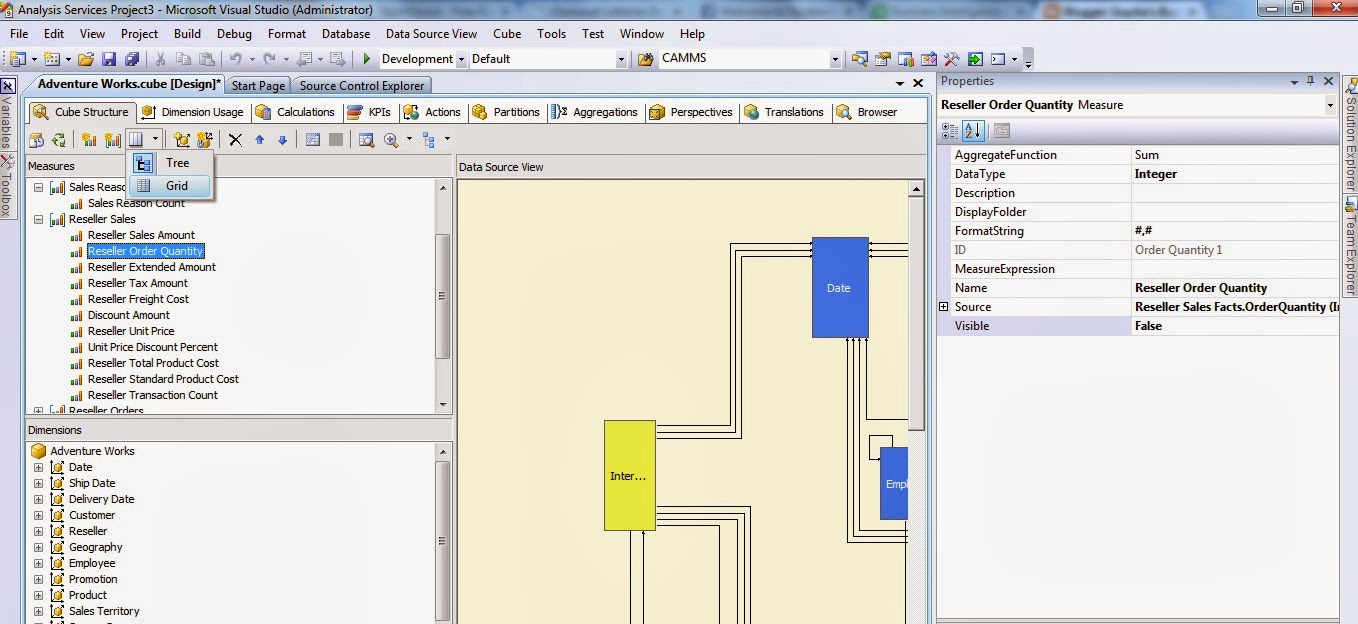
But normally in the BIDS, measures are list down as a tree and in that you have to set the visibility one by one as shown in the below figure. Because we cannot select all the measure by this view.


But for hundreds of measures this will not be practical and it will take more time and effort. 
We can easily do this by changing the measures listing to Grid as shown below.


Then we can select the multiple measures at once using the Shift or Ctrl keys and set the visibility as shown below.


Hope this will be helpful and save your time and effort.


Exclude Unknown member from the TopCount in MDX...

While taking the Top or Bottom count using a MDX query or using a Named Set, we may need to exclude Unknown member. We can easily do it by using the FILTER function as below.

   1: TopCount
   2:     (
   3:     FILTER([Item].[Item].[Item].Members,[Item].[Item].CurrentMember.MEMBER_CAPTION<>'Unknown' ),
   4:     100,
   5:     [Measures].[Unit Price]
   6:     )

Same can be applied for the bottom count as well. Also we can filter any other member using the same approach.

SSAS Cube is not shown in Excel and other client applications...

We faced a situation that the deployed and processed SSAS cube is not shown in Excel and other client applications, but it can be browsed through SQL Server Management Studio.
Actually the reason was somehow the Cube Visible property is set to False. Cube will be visible for Excel and other client applications only if this property is set to True.
But if the cube has large volume of data, it will take more time to deploy and process the cube after changing the visible property. Therefore it will not be practical and will waste time and resources.

Therefore in such scenario we can use XMLA Query to alter the cube visibility property value.
We can easily get the XMLA Query by right clicking the cube and selecting Script Cube as, then ALTER To as shown in the below image.


Then in the query window go the end of the Dimension section and you can see that the Visible property is set to false as shown in the below figure.


Change it to true and run the query. Then browse through the Excel or any other application uses to browse the cube and you will be able to browse it.

Distinct Count in SSAS

In some scenarios we may need to get the Distinct Count value. As an example we may need to get the items purchased from a particular supplier. In such scenario we need to get the distinct items from the purchase orders, since the same item will be available in different purchase orders.
For that below expression can be used.

   1: DistinctCount(Nonempty([Item].[Item].[Item].Members, [Measures].[Fact Purchase Count]))

FactPurchase is our Fact table which stores Purchase Order data and Item is the dimension which keeps Item information. By default when we create a Measure Group in the Cube, it automatically adds the Count measure. In the above expression what it does is, it joins the Item Dimension with that Count measure and get the distinct Items from it.

Get the Top N records for a result set in MDX

In SQL Query we can easily get the Top N records for a result set. But we cannot use the same syntax in MDX.

Below query will show the Top 10 records of the result set.

   1: SELECT {[Measures].[Unit Price] } ON COLUMNS,NON EMPTY
   2: Head(NONEMPTY(CrossJoin([Item].[Item].[All] ,[Company].[Company].[All].Children) ),10) ON ROWS
   3: FROM [Cube]


TopCount and BottomCount in SSAS

In some scenarios we may want to get the lowest or highest dimension attributes using SSAS Cube. As an example we may need to get the 10 items with lowest unit price and the highest unit price.

In such kind of a scenario we can use the TopCount and BottomCount functions.

To get the 10 items with highest unit price, below expression can be used.

   1: TopCount
   2:     (
   3:     [Item].[Item].[Item].Members,
   4:     10,
   5:     [Measures].[Unit Price]
   6:     )

Likewise I used the BottomCount in the same way to get the 10 items with lowest unit price.
   1: BottomCount
   2:     (
   3:     [Item].[Item].[Item].Members,
   4:     10,
   5:     [Measures].[Unit Price]
   6:     )
But it I filter data for the Month, it only shows the values for the last month. For others no rows were displayed.
Actually this is due to the NULL values and to avoid it, NONEMPTY function was used.

   1: BottomCount
   2:    (NONEMPTY([Item].[Item].[Item].Members,{[Measures].[Unit Price]})
   3:    , 10
   4:    , [Measures].[Unit Price]
   5:    )

This shows the 10 items with lowest unit price for the selected filtering criteria.

Cube Optimization in SSAS

In a BI solutions, SSAS cube may contains billions of records. In such large volume of data, query processing will be crucial. End user wants to get the output without much delay and to cater that you need to optimize the query processing. Otherwise it may take minutes to get the query results.

Anyway before optimizing the cube, DW must be designed properly to get the good query performance. In this post, only the cube optimization is considered.
For cube optimization, two main approaches can be used

  • Partitioning
  • Aggregation Designing


Partitioning

Since there are large volumes of data, we can split those data of a measure group, into different portions by considering different attribute values. Those portions of data set of a measure group are called as partitions.
As an example we can create partitions considering the month value. For each month there will be different partitions under one measure group. Those partitions are not visible to the end user and the user will only see one measure group.
Creating partition will help to process partitions separately and if only one partitions gets changed, then only that partition can be processed without affecting other partitions. Therefore partitioning is making the maintenance of the cube much easier.

Aggregation Designing

By using aggregation designing, Cube keeps pre-calculated set of data. It will increase the query performance, since those calculations are already done in the query execution.
We can design aggregation using the below two methods in SSAS cube.

  1. Design Aggregations Wizard 
  2. Usage Based Optimization Wizard


Both of above wizards can generated using the Aggregations tab of the Cube in BIDS.
In the Design Aggregation options, we can set the thresholds for the required aggregations and it will automatically design aggregations according to those thresholds.

Usage Based Optimization method uses the executed queries and design aggregations based on those. In that approach, aggregations are designed based on the frequently used queries, which takes more time.

For the long run, Usage Based Optimization will provide more query performance for the end user, since it will design aggregations based on the used queries.

Used the below reference to identify the steps used in BIDS for those aggregation design methods.
Design Aggregation Wizard
Usage Based Optimization Wizard


How to show the All Member hierarchy value in a SSRS Filter...

For some filters we may need to select all the values at once. As an example if the SSRS parameter is a single valued one and user should be able to filter all the values if needed, then we need to provide All member value in the filter as well. We can achieve this easily by retrieving the all member value to the data set of the filter.

For an example we can write the query for the Branch data set, which loads the all the branches available in the [Sales-Branch] hierarchy as

   1: WITH MEMBER [Measures].[ParameterCaption] AS [Sales-Branch].CURRENTMEMBER.MEMBER_CAPTION
   2: MEMBER [Measures].[ParameterValue] AS [Sales-Branch].CURRENTMEMBER.UNIQUENAME MEMBER [Measures].[ParameterLevel] AS [Sales-Branch].CURRENTMEMBER.LEVEL.ORDINAL SELECT {[Measures].[ParameterCaption], [Measures].[ParameterValue], [Measures].[ParameterLevel]} ON COLUMNS , {[Sales-Branch].[All],[Sales-Branch].[Branch].MEMBERS} ON ROWS  FROM [Sales]

In that you can see the ParameterLevel for the top record as 0 and indicates it is the parent level. Therefore it is the all branches record and it is given by the [Sales-Branch].[All] in the mdx query.

Record Count in SSAS Fact Table

We may need to take the record count for a fact table values in SSAS cube. As an example we may need to take the item count for a category. For that we do not need to write any MDX queries or create any Calculated Members.
If you just added the fact table by using New Measure Group, you can see a measure as FactTableNameCount, which was not in the data warehouse. We can use this measure to take the item count for the above example.
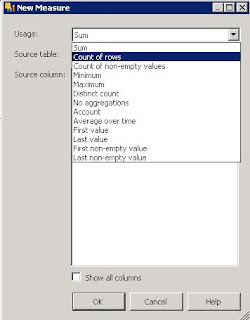
But sometimes when we create the fact table, initially we may not add that measure and later we may want it. Then we can add it to the relevant fact table by right clicking the fact table and selecting New Measure.
In the New Measure window default the Usage value is Sum. Click the down arrow and select Count of rows as shown in below figure.


Then click Ok and FactTableNameCount measure will be added. Use that measure to get the record count.

Cube File is Corrupted...

While trying to view SSRS reports, which load the SSAS cube data I got the below error message.

File system error: The following file is corrupted: Physical file: \\?\C:\Program Files\Microsoft SQL Server\MSSQL.2\OLAP\Data\Sales.0.db\Customer.0.dim\5.English Education.(All).sstore. Logical file . Errors in the metadata manager. An error occurred when loading the Customer dimension, from the file, '\\?\C:\Program Files\Microsoft SQL Server\MSSQL.2\OLAP\Data\ Sales.0.db\Customer.5.dim.xml'. Errors in the metadata manager. An error occurred when loading the A Sales cube, from the file, '\\?\C:\Program Files\Microsoft SQL Server\MSSQL.2\OLAP\Data\ Sales.0.db\Adventure Works DW.9.cub.xml'.

The reason for this error message is the the cube file in the file system is corrupted.
You can't this issue by just redeploying the cube. When you try to deploy the cube, you will get the same error message and deployment process will get failed.

You can fix the above issue by following below steps.
1. Stop the Analysis Service
2. Delete everything in the C:\Program Files\Microsoft SQL Server\MSSQL.2\OLAP\Data\%YOUR_PROJECTNAME% folder
3. Restart the Analysis Service.
4. Connect to the Analysis Service using SQL Server Management Studio.
5. Delete the Analysis Service database which you got the error.
6. Re-deploy the SSAS project.

Those steps will fix the above issue.

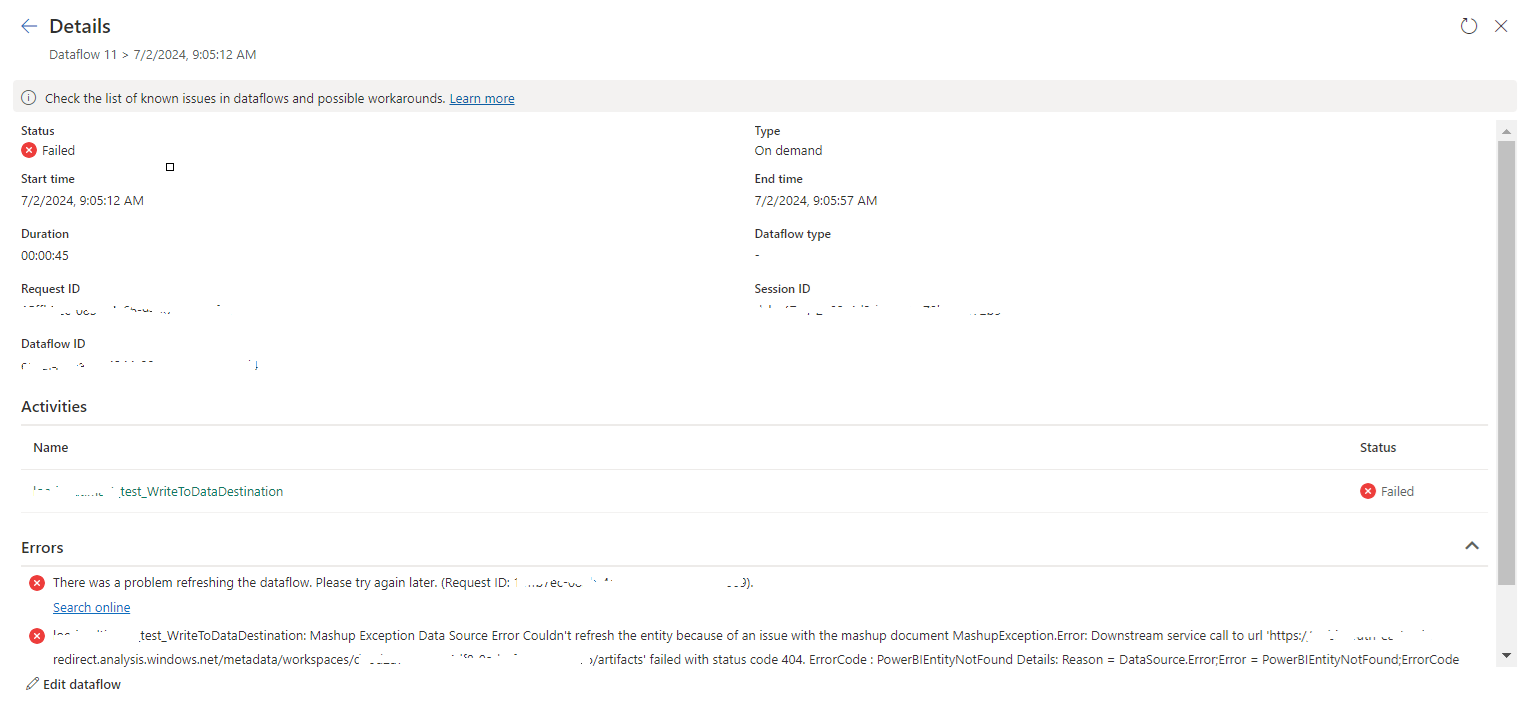
tablename_WriteToDataDestination: Mashup Exception Data Source Error Couldn't refresh the entity...

 Once a Dataflow is created and published on Fabric, got the below error while refreshing the Dataflow. tablename_ WriteToDataDestination: M...