Showing posts with label Microsoft Fabric. Show all posts

tablename_WriteToDataDestination: Mashup Exception Data Source Error Couldn't refresh the entity...

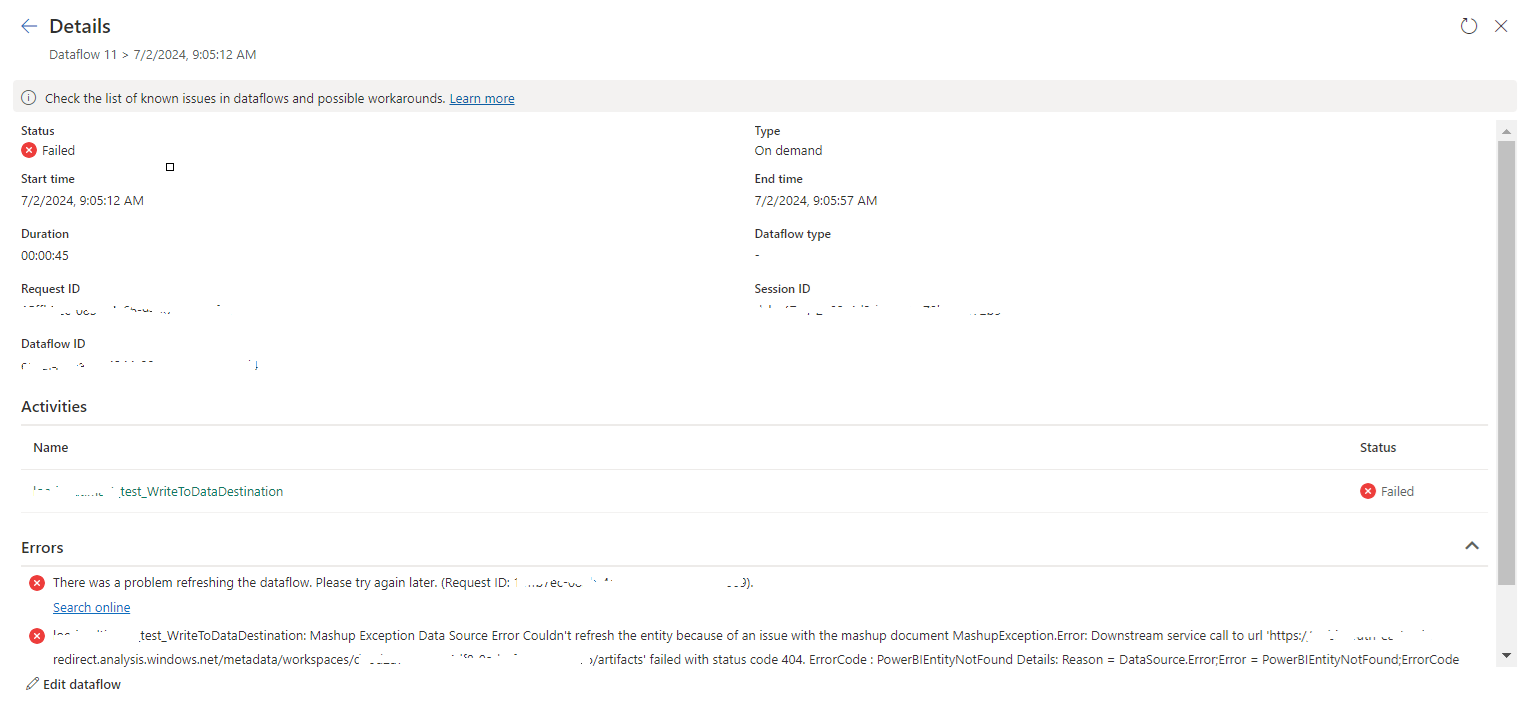
 Once a Dataflow is created and published on Fabric, got the below error while refreshing the Dataflow.

tablename_WriteToDataDestination: Mashup Exception Data Source Error Couldn't refresh the entity because of an issue with the mashup document MashupException.Error: Downstream service call to url 'https://xxxxxx.analysis.windows.net/metadata/workspaces/xxxxxxxxxxxxx/artifacts' failed with status code 404. ErrorCode : PowerBIEntityNotFound Details: Reason = DataSource.Error;Error = PowerBIEntityNotFound;ErrorCode = PowerBIEntityNotFound;RequestId = xxxxxxxxx;RequestUrl = https://xxxxxxxxxxx.analysis.windows.net/metadata/workspaces/xxxxxxxxxxxxxx/artifacts;ErrorMessage = PowerBIEntityNotFound;Microsoft.Data.Mashup.Error.Context = User GatewayObjectId: xxxxxxxxxxxx


This error is due to the destination is not set. Right click on the Dataflow query and select "Enable staging" as below. This will resolve the above issue.


Microsoft Fabric Notebook Execution: AnalysisException

While executing a Fabric Notebook, I got the below error.

AnalysisException: org.apache.hadoop.hive.ql.metadata.HiveException: MetaException(message:Spark SQL queries are only possible in the context of a lakehouse. Please attach a lakehouse to proceed.) 

The reason for this error is, I did not add the relevant Lakehouse to the Notebook.
We need to add the relevant Lakehouse as below:


After that you will not get the above error message.
Hope this will be helpful.


How to add a logo image to a Power BI report in Microsoft Fabric

There is no way to add an image directly to a Power BI report in Microsoft Fabric.
But, you can achieve it using an alternative approach as below.

  • Add a Blank Button

  • Go to the Format button section, then expand the Style under the Button section.


  • Then expand the Fill section


  • Click on Browse and select the image to be added.


  • Use the Image fit option as Fit


Hope this will be helpful...


How to run UPDATE/INSERT/DELETE Statements on Azure SQL Database in Microsoft Fabric Notebook...

You can run UPDATE/INSERT/DELETE Statements on Azure SQL Database in Microsoft Fabric Notebook using Python SQL Driver - pyodbc. 
For the Fabric Notebook, the driver is "{ODBC Driver 18 for SQL Server}"

Sample code is below:

import pyodbc
server = "servername.database.windows.net"
database = "databasename"
username = "user"
password = "password"
driver= "{ODBC Driver 18 for SQL Server}"

strsql = "Your SQL Statement"

with pyodbc.connect('DRIVER='+driver+';SERVER=tcp:'+server+';PORT=1433;DATABASE='+database+';UID='+username+';PWD='+ password) as conn:
    with conn.cursor() as cursor:
        cursor.execute(strsql)

How to execute a notebook from another notebook in Microsoft Fabric...

We can execute a notebook from another notebook in Microsoft Fabric

mssparkutils.notebook.run("child_notebook_name", 60, {"ParameterName": ParameterValue})

tablename_WriteToDataDestination: Mashup Exception Data Source Error Couldn't refresh the entity...

 Once a Dataflow is created and published on Fabric, got the below error while refreshing the Dataflow. tablename_ WriteToDataDestination: M...