How to sub string a string value using a character value in SSRS

In a report you may want to get a part of a string value by considering a character or characters.
Such a situation we have to use Mid and InStr functions.

Assume that the Description filed value contains "/".
If we want to get the string before that "/", we can use the below expression in the report text box field.

   1: Mid(Fields!Description.Value,1,InStr(Fields!Description.Value,"/")-1)

InStr function provides at which location that the "/' character exists.
You can get the last part after the "/" character by using the below expression

   1: Mid(Fields!Description.Value,InStr(Fields!Description.Value,"/")+1,Len(Fields!Description.Value))

How to avoid data is moving to the next page in SSRS even though the space is available in the previous page...

Recently I faced an issue that in a SSRS table, data in a particular row is moving to the next page if the content with in that row is not fit enough to the available space.

We can overcome this issue by setting the KeepTogether property of the Row Cell to False.
Select the particular Row Cell and go to the Properties window. In that you can find the KeepTogether property. Default the value is set to True, change it to False.
That is it. Just run the report and you will see the content is moved to that free space and additional content is  moved to the next page.

Split first word from a field in SQL table

We can use SUBSTRING and CHARINDEX functions to split the first word from a value in SQL.
As an example, if there is a field as FullName in UserInfo table and if we want to get the first word of it, then we can use the below query to get it.

   1: SELECT  FullName , SUBSTRING( FullName ,0,CHARINDEX(' ',Name+' ',0)) AS FirstName
   2: FROM            dbo.UserInfo

In the CHARINDEX function I added ' ' to it, because otherwise it will return null if the FullName value only has a single word.

SSIS Row Count Component...

Recently I used the Row Count component in SSIS toolbox. I used it in a Data Flow to set the row count of a Lookup match output. When I tried to get that set value in a Conditional Split component in the same Data Flow, I found that the variable has the default value and the row count was not set for that variable.

But when I get the variable value using Script Task, I found that the variable has the row count.
Actually the issue is the row count value is available after the completion of the Data Flow task. We cannot access the variable inside the same data flow task which sets the row count value.

Due to that I have to use two Data Flow tasks. In the first data flow task I set the row count value to a variable using Row Count component and in the other data flow task, the variable value is checked and do the required processing.

Replace double quotes in SSIS...

Recently I had a requirement to load csv file data which is generate from FoxPro.
But when I checked the csv file, found that it has additional double quotation mark at the start and the end of the value. As an example if the actual branch value is Branch1, the csv file has that as "Branch1".

Therefore to get the actual value I had to remove those double quotation mark and able to do it using REPLACE function.

I added a Derived Column component to the package and in that replace the branch column value after removing double quotes. For that I used the below expression.
   1: LTRIM(RTRIM(REPLACE([branch],"\"","")))

That is it, It will give you the actual branch value correctly as Branch1.

How to show the All Member hierarchy value in a SSRS Filter...

For some filters we may need to select all the values at once. As an example if the SSRS parameter is a single valued one and user should be able to filter all the values if needed, then we need to provide All member value in the filter as well. We can achieve this easily by retrieving the all member value to the data set of the filter.

For an example we can write the query for the Branch data set, which loads the all the branches available in the [Sales-Branch] hierarchy as

   1: WITH MEMBER [Measures].[ParameterCaption] AS [Sales-Branch].CURRENTMEMBER.MEMBER_CAPTION
   2: MEMBER [Measures].[ParameterValue] AS [Sales-Branch].CURRENTMEMBER.UNIQUENAME MEMBER [Measures].[ParameterLevel] AS [Sales-Branch].CURRENTMEMBER.LEVEL.ORDINAL SELECT {[Measures].[ParameterCaption], [Measures].[ParameterValue], [Measures].[ParameterLevel]} ON COLUMNS , {[Sales-Branch].[All],[Sales-Branch].[Branch].MEMBERS} ON ROWS  FROM [Sales]

In that you can see the ParameterLevel for the top record as 0 and indicates it is the parent level. Therefore it is the all branches record and it is given by the [Sales-Branch].[All] in the mdx query.

Configuring SSRS Report Subscription using a Remote SMTP Server...

In one of my previous post, I mentioned how to Configure SSRS Report Subscription using Gmail as the SMTP Server.
But in some situations we may need to configure it using Remote SMTP Server. It is bit easier than the previous one.
Open the Reporting Services Configuration Manager and connect to the reporting service instance. Then go to the E-mail Settings. In that provide the appropriate Sender Address and SMTP Server values.
That is it.
If you check the rsreportserver.config file, you can see that the sender address and smtp server values are in the file. Also you can see that the SendUsing value is set to 2, indicating that the smtp server is a remote server.

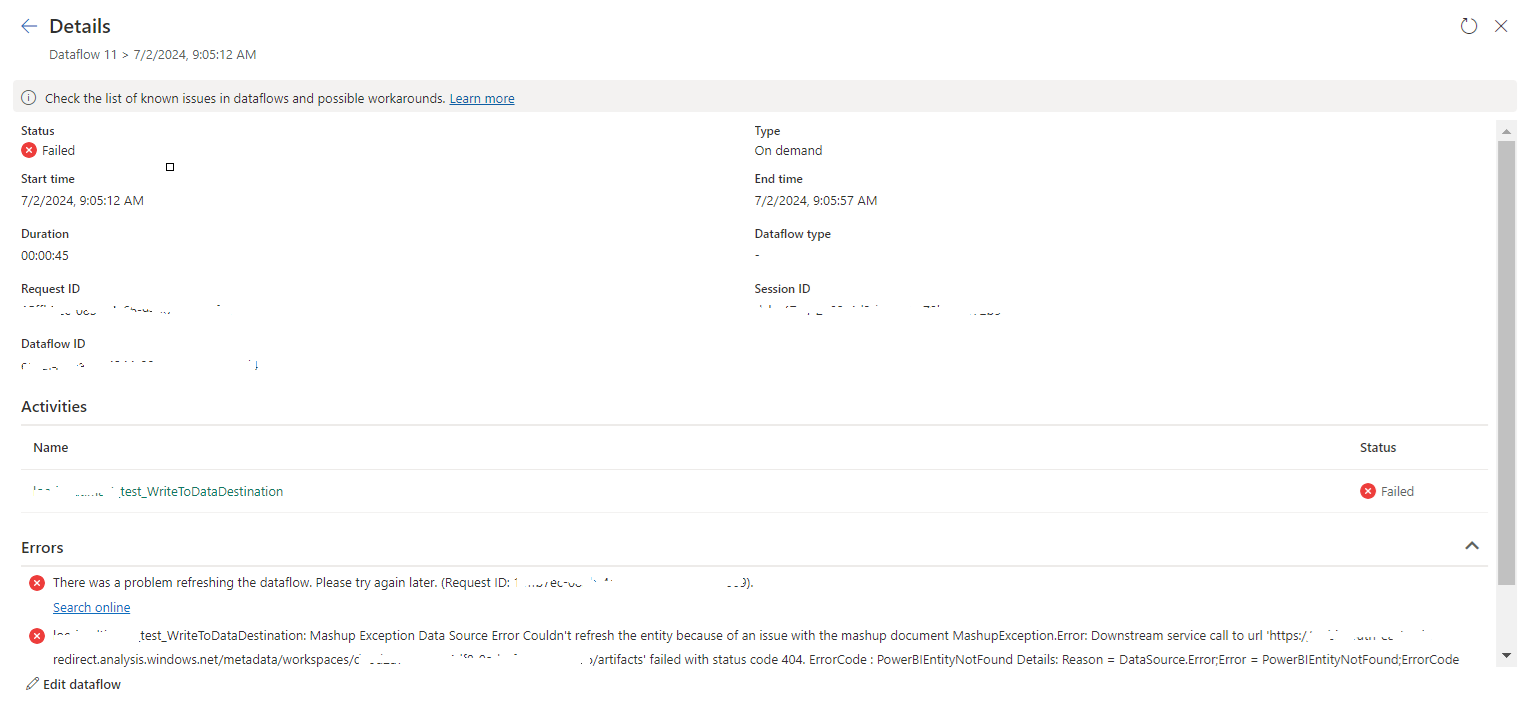
tablename_WriteToDataDestination: Mashup Exception Data Source Error Couldn't refresh the entity...

 Once a Dataflow is created and published on Fabric, got the below error while refreshing the Dataflow. tablename_ WriteToDataDestination: M...