Connecting to Pervasive SQL using SSIS

I got an requirement from a client as connect to Pervasive SQL database system and retrieve data from it.

I was able to achieve that requirement using SSIS. For that we have to install the OLEDB driver for Pervasive SQL. After that create a SSIS package and add a OLEDB Source in the Data Flow Task. Then create a New OLEDB connection.
Select the Provider as Native OLEDB\Pervasive PSQL OLEDB Provider.
Then you have to provide the server or file name and the location. But there some confusion about those values. Because for this provider you have to provide the server which contains the Pervasive SQL database as the Location and the Pervasive SQL database as the Server or file name value. Then you have to provide the Initial Catalog value as well. Figure is shown below


Then click on All and under Pooling yow will see OLEDB Services. Select the value as Disable All as shown in the below figure.


Otherwise you will get and error as shown below figure while trying to preview data.


Then select that connection in the OLEDB Source and use SQL Command to retrieve data. Because I tried to get the list of tables and unable to do it due to memory exception.

Hiding Report in the SQL Report Server Tile View...

Sometimes we may want to hide a report from the report server and allow drill down from an another report to the hidden report. For that we can use Hide in tile view property.

For that, move the mouse pointer on top the report name in the report server folder and you will get a down arrow. Click on it and then select Manage. In the Manage page put a tick at the Hide in tile view and click on Apply button.

Then go to the report server folder and you will not see that report anymore. But still you can drill down to that report from another report.

If you want to show that report in the Details view again, click on Details View to get the detail view of those reports and all the report are visible there. Then follow the steps as you did earlier and get the Manage page. In that remove the tick at Hide in tile view property.

Advanced MDX Ranking

There was a situation that I want to get the Rank value considering three dimension levels. In one of earlier post (MDX Rank post), I mentioned how to get the rank value for two dimension levels.
This post will shows the MDX query to get the rank value for three dimension levels.

Lets consider a scenario that we want to get the Rank value of a department considering the stores of a particular region. Below MDX query will give the required rank value.

WITH
MEMBER [Measures].[RankSales] AS
RANK(([Store—Region_Store].CurrentMember,[Store—Region].CurrentMember,[Item—Department].CurrentMember),
ORDER(({[Store—Region_Store].[Store].MEMBERS*[Store—Region].CurrentMember*[Item—
Department
].CurrentMember}),
[Measures].[Sales],
BDESC))

SELECT
{[Measures].[RankSales]} ON 0,
{[Store—Store].[Store].MEMBERS*[Item—
Department
].[
Department
].MEMBERS
} ON 1
FROM
[Sales]
where {[Store—Region].[All Store—Region].[Region1]}*{[Item—
Department_Sub
].[All Item—
Department_Sub
].[
Department1
]}

Likewise we can expand the query to any dimension levels. Hopes this will help you...

Non-Windows user credentials were supplied for a non-http connection to Analysis Services...

While trying to view a SSRS report in the report server outside from the server, I got the below error message.

Non-Windows user credentials were supplied for a non-http connection to Analysis Services. The Microsoft SQL Server Analysis Services data extension requires Windows Integrated Security unless connecting via http or https.

This because when we access the data source which use for the report from outside, it cannot connect to the cube due to the user permission issue.

  • When we want to provide access for non domain users to the report, we provide credentials of an authorized user for the data source. 
  • Go to the Data Source folder in the report server and then click on the relevant data source. 
  • Then you will get set of properties and in that you can see Connect using: property. 
  • In that select Credentials stored securely in the report server option and provide a valid user name and password. 
  • But if you click Apply button by just providing that user name and password, when you are going to view the report you will get the above error message. 
  • To solve it you just want put a tick on Use as Windows credentials when connecting to the data source just below the Password. 
  • Then test the connection and click Apply after that.


Then view the report and you will be able to view it...

Case Sensitivity with SSRS Grouping ?

When I created a SSRS report to retrieve SSAS cube data, I found that the dimension members which contains same name but has different case, has been missing. As an example if you have two dimension members of Item dimension as item1 and Item1, then only one will be shown.
The reason was that it does not support case sensitivity with grouping.

To have the case sensitivity in the report I had to do two changes. One is in the cube level and the other one is in the report data set level.

At the dimension level you have to allow case sensitive. To do that open the dimension in the dimension editor using BIDS, the select the dimension and view the properties. At the top of the Properties window you will find the Collation property. Click on the button and put a tick in front of Case Sensitive value. Then process the dimension and then process the cube.

Even though you change this, you will not get the expected result in the report. To get it, select the Dataset in the Report Data tab and double click on it. Then go to the Options section and then select True from Case sensitivity: drop down list. Click Ok and preview the report. Then you should get the both item1 and Item1 records.

MDX Rank

Normally we use MDX Rank function to get the rank value considering just one dimension level. But I face an situation that Rank value needed to be taken considering two dimension levels. As an example needed to get the Rank of Sales value of stores, which related to a Region.
I was unable to find a direct solution and after doing some researches I was able to build the MDX query.
The query is given below.

WITH
MEMBER [Measures].[Rank] AS
RANK(([Store—Region].CurrentMember,[Store—Region_Store].CurrentMember),
ORDER(({[Store—Region_Store].[Store].MEMBERS*[Store—Region].CurrentMember}),
[Measures].[Sales],
BDESC))
SELECT
{[Measures].[Rank], [Measures].[Sales]} ON 0,
{[Store—Region_Store].[Store].MEMBERS} ON 1
FROM
[Sales]
where {[Store—Region].[All Store—Region].[Region1]}

If we give the region value as Region1, then what this query does is it rank only the stores which are related to the Region1 region. If the Region1 region contains 5 stores, the highest rank value you will get is 5.
Hope this will help for you as well...

Adding two Filter conditions in MDX WHERE statement

I wanted to add two conditions which contains different dimensionality in MDX WHERE statement. After trying several syntax I was able to find the way.

SELECT {[Measures].[Sales]} ON ROWS, {[Store—Store].[Store].ALLMEMBERS} ON ROWS
FROM [SalesCube] WHERE {[Customer].[All Customer].[CustomerName]} * {[Store—Region_Store].[All Store—Region_Store].[RegionName]}

If you entered the WHERE statement incorrectly, you will get an error message as
The function expects a tuple set expression for the 1 argument. A string or numeric expression was used.

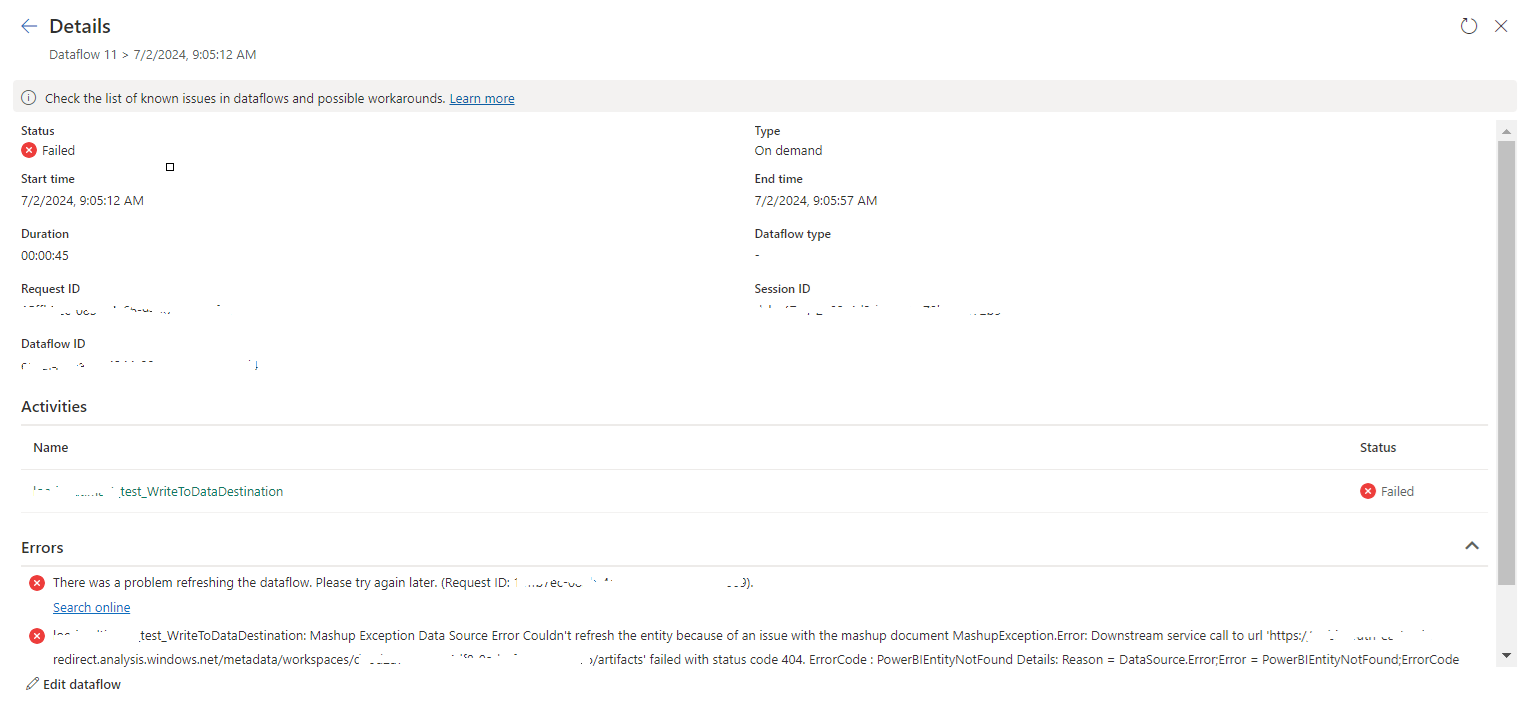
tablename_WriteToDataDestination: Mashup Exception Data Source Error Couldn't refresh the entity...

 Once a Dataflow is created and published on Fabric, got the below error while refreshing the Dataflow. tablename_ WriteToDataDestination: M...