In some scenarios we may store log details in SQL Server. Those data stored in the table named as "sysdtslog90".
Therefore you can retrieve those details using the below simple query
SELECT * FROM dbo.sysdtslog90


Easy way to Customize MOSS 2007 Master Pages using SharePoint Designer 2007
Using SharePoint Designer 2007, you can easily customize your SharePoint Master pages. If you want to create a new master page you can easily do it. To do that first copy the default.master page and rename it to whatever name you want (Master page can be found at "C:\Program Files\Common Files\microsoft shared\Web Server Extensions\12\TEMPLATE\GLOBAL").
Then go to the your SharePoint site and go to Site Settings. Click Master Pages under Galleries category and upload the renamed master page to the Master pages.
Then open the SharePoint Designer 2007 and click on the Open Site in the File menu.
Then copy the url of the your SharePoint site and open it in SharePoint Designer 2007. You can see the master pages of the site in the catalogs folder. Double click on the renamed master page to edit in SharePoint Designer.
Then you can customize that page according to your requirments. If you want to remove some parts in the master page, the best thing is comment those code instead of deleting those in the design mode. The reason is if we delete those in design mode it gives errors in the design mode or when we publish them.
After customizing the page click on Save. If you want to set the customized Master Page as the default master page, righ click on it and select "Set as Default Master Page".
That's all. After that you can use the customized master page for other SharePoint Web Applications too.
Then go to the your SharePoint site and go to Site Settings. Click Master Pages under Galleries category and upload the renamed master page to the Master pages.
Then open the SharePoint Designer 2007 and click on the Open Site in the File menu.
Then copy the url of the your SharePoint site and open it in SharePoint Designer 2007. You can see the master pages of the site in the catalogs folder. Double click on the renamed master page to edit in SharePoint Designer.
Then you can customize that page according to your requirments. If you want to remove some parts in the master page, the best thing is comment those code instead of deleting those in the design mode. The reason is if we delete those in design mode it gives errors in the design mode or when we publish them.
After customizing the page click on Save. If you want to set the customized Master Page as the default master page, righ click on it and select "Set as Default Master Page".
That's all. After that you can use the customized master page for other SharePoint Web Applications too.
Avoiding ASP.Net Browser Refresh Problem
Lets assume you delete an item in a gridview and you will get a confirmation message box to decide whether delete that item or not. After completing that task, refresh the page. Sometimes you will get the previous confirmation message box.
Same thing can happen when you insert particular record for a button click event. When you refresh the page that same record will be inserted again.
Same thing can happen when you insert particular record for a button click event. When you refresh the page that same record will be inserted again.
Below link contains a sample code to avoid it
Code:
using System;
using System.Collections.Generic;
using System.Linq;
using System.Web;
using System.Web.UI;
using System.Web.UI.WebControls;
namespace WebApplication1
{
public partial class _Default : System.Web.UI.Page
{
protected void Page_Load(object sender, EventArgs e)
{
if (!IsPostBack)
{
Session["CheckRefresh"] = Server.UrlDecode(System.DateTime.Now.ToString());
}
}
protected void Button1_Click(object sender, EventArgs e)
{
if (Session["CheckRefresh"].ToString() == ViewState["CheckRefresh"].ToString())
{
Label1.Text = "Hello";
Session["CheckRefresh"] = Server.UrlDecode(System.DateTime.Now.ToString());
}
else
{
Label1.Text = "Page Refreshed";
}
}
protected void Page_PreRender(object sender, EventArgs e)
{
ViewState["CheckRefresh"] = Session["CheckRefresh"];
}
}
}
Adding Multivalued Parameter as a Filter for a SQL Server Report

The only difference is you have to choose the operator as "In". It set the the selected value to an array and filter the report
Problem with Publishing PerformancePoint Dashboard to SharePoint site
If you get and error message in SharePoint site after publishing PerformancePoint Dashboard to SharePoint site that might occur due to the problems with configuring PerformancePoint monitoring server.
When you configuring the PerformancePoint monitoring server, you should provide the URL of the SharePoint site which you use to display the PerformancePoint Dashboards. Then the configuration process will modify the web.config file of the relevant SharePoint Site
When you configuring the PerformancePoint monitoring server, you should provide the URL of the SharePoint site which you use to display the PerformancePoint Dashboards. Then the configuration process will modify the web.config file of the relevant SharePoint Site
Problems occur while creating new Web Application in MOSS 2007
- When you try to create a new application using SharePoint Central Administration, sometimes "Reset Internet Information Services" may be disabled. It might be due to the "Windows SharePoint Services Administration" service is not started. After starting that service the mentioned service should be enabled.
- Also after insalling and configuring MOSS 2007, when you try to create a new web application using SharePoint Central Administration by clicking OK button in the new web application page nothing will happen. To overcome that issue, you have to add the SharePoint Central Administration site to the Local Intranet using the Internet Explorer.
Adding Horizontal Gauges for SQL Server 2008 Reports
- First add a matrix to the report
- Then delete the row group and add rows as required
- After that open the column group property box and add the below expression to the "Group On" under general tab
- Then add the values to the data row cells
- After that add a list to the design
- For the List get the Row Groups property window and add the below expression
- Then change the "Nothing" in the column group properties to the Name of the Row group of the List
- Then drag the matrix inside to the List
- That's all. You will get the 3 Gauges for each row.
Subscribe to:
Posts (Atom)
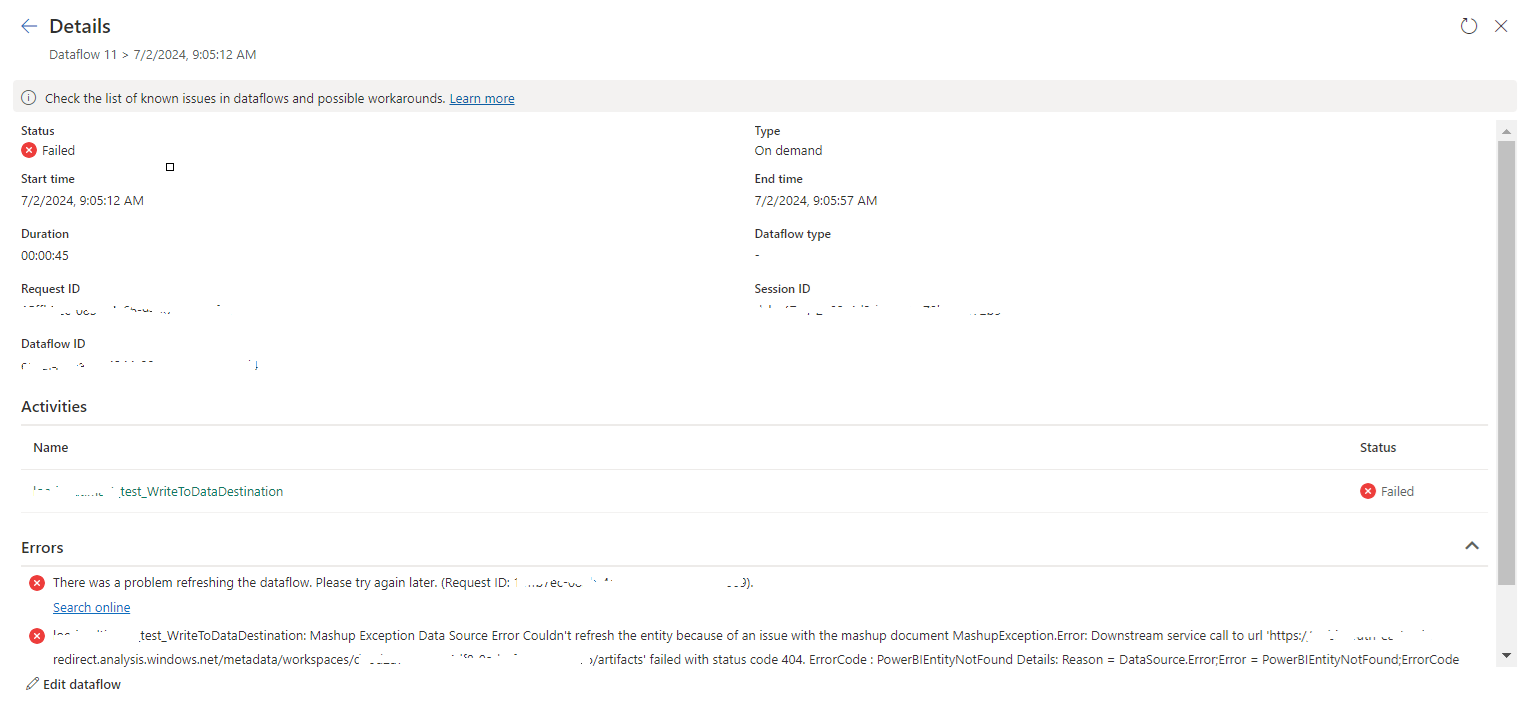
tablename_WriteToDataDestination: Mashup Exception Data Source Error Couldn't refresh the entity...
Once a Dataflow is created and published on Fabric, got the below error while refreshing the Dataflow. tablename_ WriteToDataDestination: M...
-
In SQL Report Subscription, you may want to send the report with the link and you can do it by selecting Include Link value. But some time...
-
In SQL Server Analysis Services Cube, there may be a situation where we need to combine two related fact tables. This kind of a situation ma...
-
 When I tried to connect to a SharePoint URL in dashboard designer options, it prompt a message saying "The URL is not available, does n...