Filtering Dimension Members having the same name in a MDX Query...

Sometimes different dimension members having different key values may have the same name. This kind of situations mainly occurs when we set a default value to those unknown dimension member values. As an example if we set the value as "Unknown" for the items in the sales records, which do not match our existing items, then the key value for those items in the cube will be different but the name value will be same.

But if we try to filter those "Unknown" member values using the query designer, it will only filter the selected members. Otherwise we have to select all the members having the name value as Unknown, to filter those. But if there are large number of members having the same name, then it will be difficult and not feasible to select all those.

We can filter those in the MDX query using INSTR function. The query will looks as below.

   1: SELECT NON EMPTY { [Measures].[Sales] } ON COLUMNS, NON EMPTY { (
   2: [Items—Items_Vendor_Item].[Item Name].ALLMEMBERS ) } ON ROWS FROM
   3: [SalesCube]
   4: WHERE FILTER([Items—Items_Category_Item].[Item].Members, INSTR([Items—Items_Category_Item].CurrentMember.Name,'Unknown')=0)

Since it is not allowed to use the same hierarchy more than once in the query, two dimension hierarchies are used which contains Items.

SSRS table border double is not working...

I wanted to add double line for the bottom of the each row in a SSRS table. But when I set the Border Style for the Bottom of the Row as Double and preview the report, I was unable to see the double line at the bottom of any row.

Actually the reason was even though it was applied, it was not visible. To fix it just change the Border Style for the Top to None while keeping the Border Style for the Bottom as Double. Then increase the Border Width for the Bottom as 2pt. Then try to preview the report. I was able to get the double line by setting the border width as 2pt.
But if still you are not getting it, try to increase the border width for the bottom as 2.5pt or 3pt. Then you should be able to see the double line at the bottom of each row.

How to make SSRS Indicator as fix size...

If you just add the Indicator in SSRS 2008 R2 or 2010 to a cell in a table and try to preview the report, you will see that the Indicator will be stretched if the row has multiline records.

To fix this what you have to do is just add a Rectangle to the cell and after that add the Indicator.
Then try to preview the report and you will see that even though the row has more than single line, Indicator size is fit to the height of a single line and it is not stretched.

Use of UrlRoot property in SQL Report Server Config file...

In SQL Report Subscription, you may want to send the report with the link and you can do it by selecting Include Link value. But some times you will get the link include the computer name and not the domain name. Due to that the given is not working if you try to it from outside.


This happens since you have not set the value for the UrlRoot property in the rsreportserver.config file.
To fix it, open the rsreportserver.config file in a text editor and find the UrlRoot property.
Set the value for it as the report server URL with the domain name as below.
https://server.domain.com/reportserver

That is it and you will get the link with the given domain name.

Allow E-mail address to be changed for the Users having Browser permission in SSRS Subscriptions...

Normally Users having Browser permission cannot changed the e-mail address (To: field) in the report subscription page. Default the user name is applied as the value for the To: field.
To allow this to be modifiable by users having Browser permission, you need to modify the rsreportserver.config file.

Open the rsreportserver.config in a text editor.
Then set the SendEmailToUserAlias to False and Save the rsreportserver.config file.

That is it.
Now just try to create a New Subscription and you will see there is no value in the To: field and it is editable.

Configuring SSRS Report Subscription using Gmail as the SMTP Server...

Recently I was trying to configure SSRS Report subscription. I checked some links in the MSDN and by following those steps I was unable to configure it. The reason was I used the SMTP server as smtp.gmail.com since we are not having a local smtp server. To use the smtp.gmail.com as the smtp server we need to follow some additional steps other than the steps mentioned here.

The first step is we need to configure a Virtual SMTP server.
First make sure that the SMTP Feature is installed on your server, if not installed it.
Then use IIS Manager to configure the virtual SMTP server. I am using Windows Server 2008 and it has both the IIS 6 and IIS 7.
To configure virtual SMTP server we have to use IIS 6.
Open the IIS 6.0 Manager and you will get a screen as below.


In that if the SMTP Virtual Server is not started, then start it. Then right click on it and select Properties.
You will get a screen as given below.


In the General tab select the IP Address value and unmarked the Limit Number of Connections to field.
Then go to the Access tab and click on the Relay button at the bottom. Then select All except the list below and click OK.
Then go to the Delivery tab you will get a screen as below.


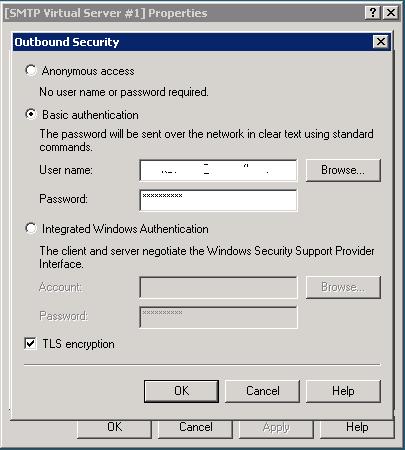
Click on the Outbound Security... button. In that select Basic Authentication and provide the gmail user name and the password as shown below. Also select the TLS encryption as well.


Click OK and then click on the Outbound connections... button.
In that change the TCP port value to 587 and click OK.

Then click on the Advanced button in the Delivery tab. Then provide the Smart host value as smtp.gmail.com and also check whether the Fully-qualified domain name is correct.
Then click OK on both the Advanced Delivery window and the Properties windows. That is it and now you completed configuring virtual SMTP server.

The next step is to use that virtual SMTP server to configure Reporting Services.
To configure it run the Reporting Service Configuration Manager. Connect to the Reporting Service instance and select Email Settings. You will get a screen as shown below.


In that provide the Sender Address which is used to send mails. For the SMTP Server value, provide the IP Address given for the virtual SMTP Server. Click Apply.

But still it is not completed. You have to modify the rsreportserver.config file which can be found at  C:\Program Files\Microsoft SQL Server\MSRS10_50.MSSQLSERVER\Reporting Services\ReportServer.

The rsreportserver.config contains a property as SendUsing which specify whether a local SMTP Server (SendUsing =1) is used or a Remote SMTP server (SendUsing =2) is used to send mails.
Since we are using virtual SMTP server we need to set the value as 1.

The other property we need to set is SMTPServerPickupDirectory value which specifies the local pickup directory. We need to set that value in the rsreportserver.config file as well and for my example it is as C:\inetpub\mailroot\Pickup. Then save the rsreportserver.config file.

You will complete the configuring Reporting Service E-mail Delivery after saving the rsreportserver.config file. That is it.

Now go to the Report Server and click the down arrow of the relevant report and select Manage. In that select Subscriptions and create a New Subscription. In that page select the report delivery option as E-mail and provide other required values. 

After that you will get e-mails according to the given schedule.

How to get the installed SQL Server details...

We can get the installed SQL Server details such as SQL Server Edition, Product Version and Product Level using the below query. Just open a query window using SQL Server Management Studio and run it.

   1: SELECT SERVERPROPERTY ('edition') AS SQLEdition,SERVERPROPERTY ('productversion') AS ProductVersion, SERVERPROPERTY ('productlevel') AS ProductLevel

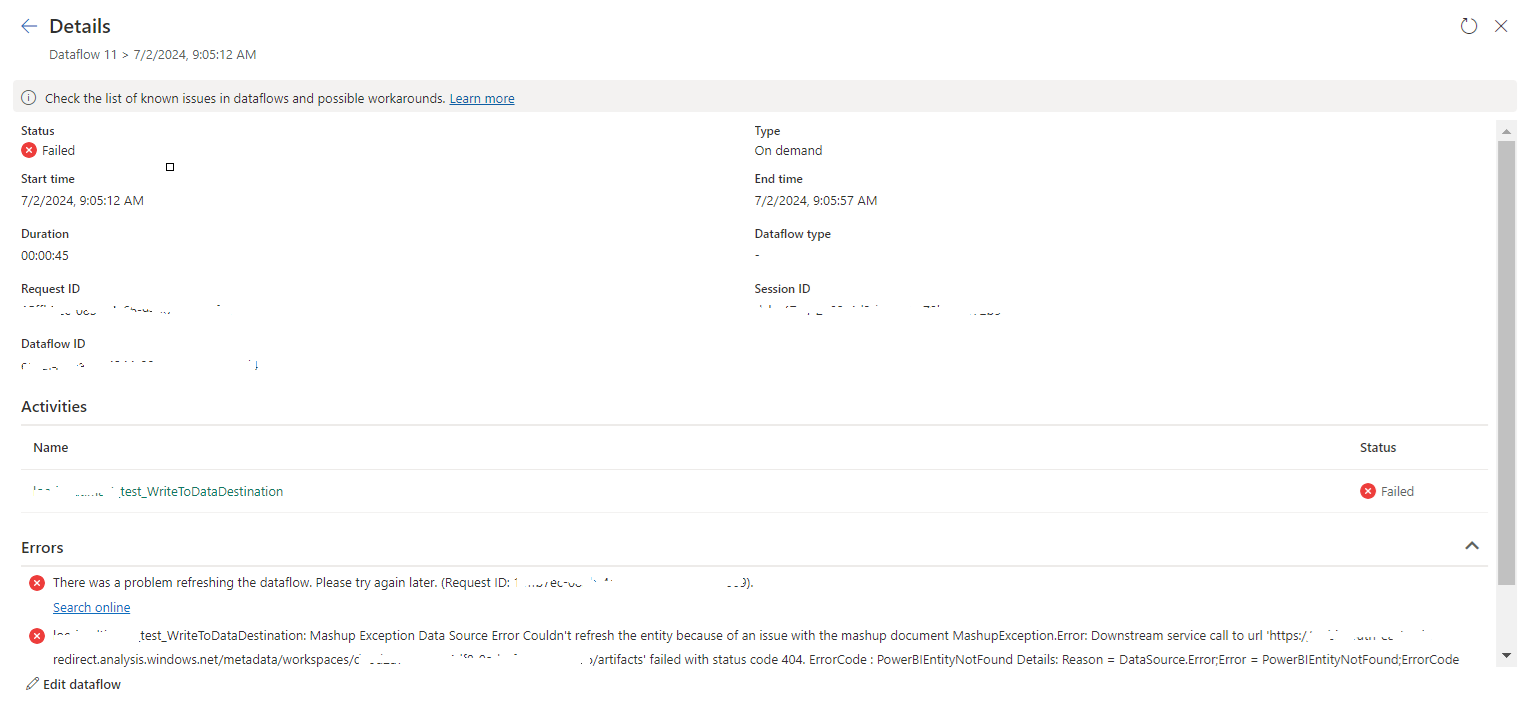
tablename_WriteToDataDestination: Mashup Exception Data Source Error Couldn't refresh the entity...

 Once a Dataflow is created and published on Fabric, got the below error while refreshing the Dataflow. tablename_ WriteToDataDestination: M...