Enabling Java scripts and Ajax in IE for Windows Server 2008 R2

I had a problem while run the PerformancePoint Server 2007 Dashboard Designer using Internet Explorer in Windows Server 2008 R2. That is the Run button and the Go button are not visible for the Dashboard Designer page.
Also I had some problems for the SharePoint Server 2007 in the same OS and with the same browser. In sharepoint, those javascripts were not working.

Those errors occurs due to the security settings provided by the OS.
To solve those issues go to the Server Manager.
Then as shown in the below figure, you can find Configure IE ESC under the Security Information.


Click on it and select Off form those selections as shown in the below figure.


Then click Ok and check your sites.
It will works...

Data Cleansing with SSIS

Data cleansing is the process of detecting and correcting (or removing) corrupt or inaccurate records from a record set, table or database. For an example correcting misspelled records from a given record set.

Below diagram shows when data cleansing is required.


To avoid those situations and to have consistent, relevant and accurate data, data cleansing is required.

Stages of the data cleansing process is as shown below.


As shown in the above figure, before data cleansing, Data Quality Testing need to be done.
After that data cleansing is done by parsing, data transformation, duplicate elimination and by doing some statistical analysis.
The final output of the data cleansing process will be accurate, consistent and relevant data.

SQL Server Integration Services(SSIS) is providing the facility to implement data cleansing processes.
There are some components which can be used to perform data cleansing operations provided by SSIS.
They are
  • Lookup
  • Fuzzy Lookup
  • Fuzzy Grouping

Below diagram shows how we can use those components to achieve data cleansing for a given record set.


In that example a simple scenario is considered. For a given sales record set, it checks whether the customer exists. If not it enters the customer record by considering it as a new customer.
There may be situations, that the customer name is misspelled. SSIS Fuzzy Lookup component can be used identify that kind of situations.
Also when new customer records are inserted, duplicate records may exists. To prevent inserting duplicate records, Fuzzy Grouping component can be used.

I'll discuss how Fuzzy Lookup and Fuzzy Grouping works in another post...

SQL Server 2008 Installation Failed....

While trying to install SQL Server 2008 in Windows XP, I got a error in "System Configuration Check"
The error is Rule "Performance counter registry hive consistency check" failed. The performance counter registry hive is corrupted.
The problem occurred since the installation trying to read the above register value and does a calculation on Last Counter and Last Help.
We can solve this issue by changing the those Last Counter and Last Help values

Type regedit in the Run and press Enter. It will open Registry Editor window.


Open the HKEY_LOCAL_MACHINE\SOFTWARE\Microsoft\Windows NT\CurrentVersion\Perflib\009.
Then you will get a screen as shown in below figure.


Double click on Counter record to get a window as shown below.


Then scroll to the second last line and you will see a number like 3422 as shown in the below figure and remember it.


This is the Last Counter number that the system uses.

Then do the same thing for the Help record too and it is the Last Help number that the system uses.

Then go to the HKEY_LOCAL_MACHINE\SOFTWARE\Microsoft\Windows NT\CurrentVersion\Perflib. The screen is shown below.


Double click on Last Counter and you will get a window as below.


Then select Decimal radio button and put the value taken from the earlier Counter record for the Value data field.
Do the same thing for Last Help which is in the same window.

It will solve the above mentioned issue and do the installation again.
You will be able to pass from that System Configuration Check...

Make the starting point of a the X-Axis as the Y-Axis in an Area Chart of SSRS

You can make the starting point of a the X-Axis as the Y-Axis in an Area Chart of SQL Server Reporting Services easily. Initially the Chart will be as shown below.


First right click on the the X-Axis and select Axis Properties.
Then you will get the "Category Axis Properties" window and change the Side margins property to Disabled as shown below.


It will do the task and you will get a chart as shown below.


That's all...

Unable to connect to server in PerformancePoint Server 2007

While I am trying to connect to the server in PerformancePoint Dashboard Designer, I got a message saying "Unable to connect to server".
There may be two resons.
* The first reason is the services required to run the PerformancePoint server are stopped in the
Internet Information Services (IIS) Manger Application Pools.
Therefore to fix that issue, first go to the IIS Manger and select Application Pools.
Then the services run in the Application Pools will be shown and you will see the services
related to PerformancePoint server (PPSMonitoringCentral, PPSMonitoringPreview,
PPSMonitoringWebService) are stopped.
Start those services by click on it and selecting Start in the Application Pool Tasks.

* The other reason is the SQL Server Service is not started.
To fix it open the Sql Server Configuation Manager and start the relevant Sql Server Service

After that you will be able to connect to the server...

Expression to add alternating row color for rows in a SQL Report

Go to the table row's BackgroundColor property
Then click on the down arrow and choose "Expression..."
Enter the below code in that expression value.

= IIf(RowNumber(Nothing) Mod 2 = 0, "LightBlue", "White")

It sets the alternating row values as LightBlue and White.

Dashboard was not deployed...

While am trying to preview a dashboard in PerformancePoint Server, it shows the detail that "Dashboard was not Deployed".
The reson for that issue is we don't have permissions to preview it.

To fix it follow below steps.

  • Go to IIS-->Local Host-->Sites
  • Click on PPS Monitoring
  • Right click on Preview and click Edit Permissions.
  • Then you will get the Preview Properties. Click on the Security tab and click on the Edit button.
  • Then add the current user by allowing Full Control.
  • After that that click Ok and you will be able to preview the dashboard...
That will fix the issue which I mentioned on top of the article.

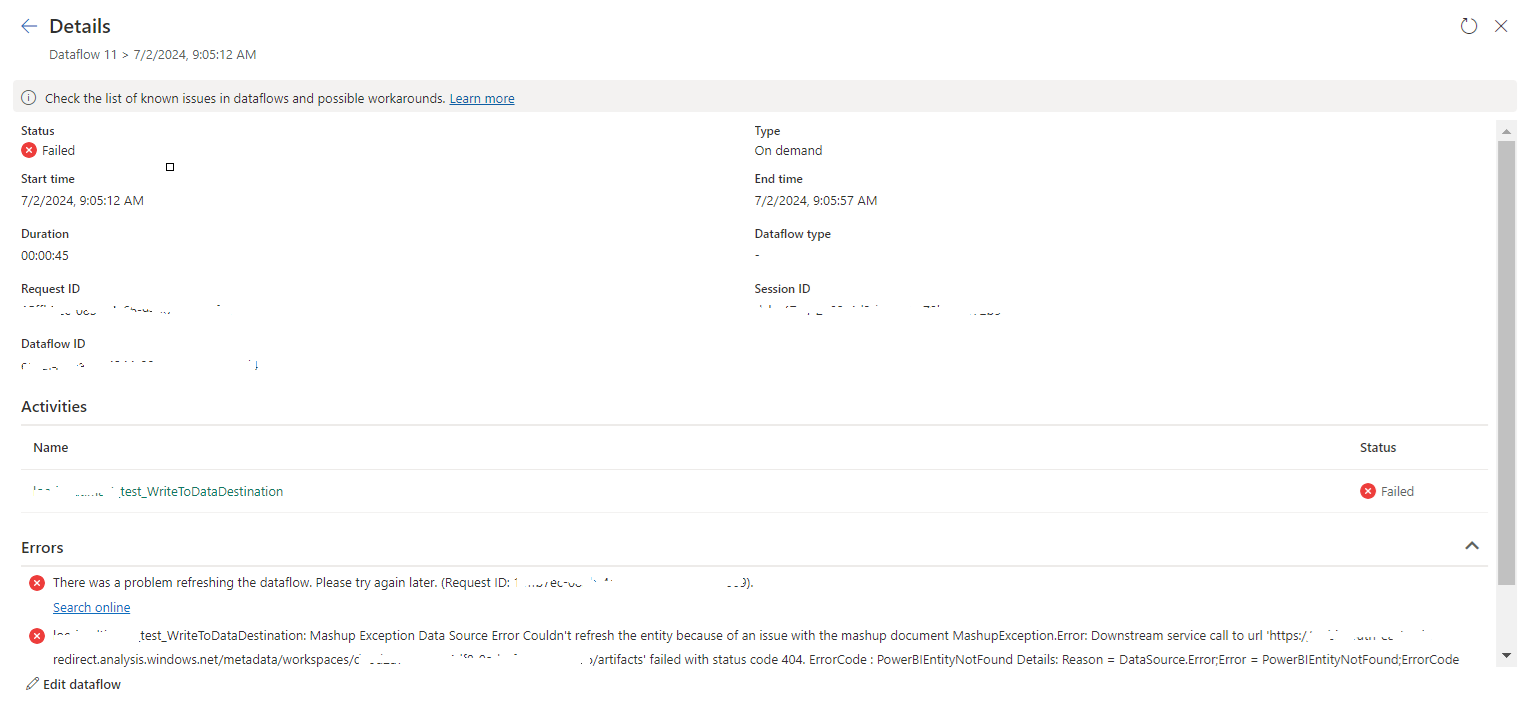
tablename_WriteToDataDestination: Mashup Exception Data Source Error Couldn't refresh the entity...

 Once a Dataflow is created and published on Fabric, got the below error while refreshing the Dataflow. tablename_ WriteToDataDestination: M...