SQL Server 2008 Installation Failed....

While trying to install SQL Server 2008 in Windows XP, I got a error in "System Configuration Check"
The error is Rule "Performance counter registry hive consistency check" failed. The performance counter registry hive is corrupted.
The problem occurred since the installation trying to read the above register value and does a calculation on Last Counter and Last Help.
We can solve this issue by changing the those Last Counter and Last Help values

Type regedit in the Run and press Enter. It will open Registry Editor window.


Open the HKEY_LOCAL_MACHINE\SOFTWARE\Microsoft\Windows NT\CurrentVersion\Perflib\009.
Then you will get a screen as shown in below figure.


Double click on Counter record to get a window as shown below.


Then scroll to the second last line and you will see a number like 3422 as shown in the below figure and remember it.


This is the Last Counter number that the system uses.

Then do the same thing for the Help record too and it is the Last Help number that the system uses.

Then go to the HKEY_LOCAL_MACHINE\SOFTWARE\Microsoft\Windows NT\CurrentVersion\Perflib. The screen is shown below.


Double click on Last Counter and you will get a window as below.


Then select Decimal radio button and put the value taken from the earlier Counter record for the Value data field.
Do the same thing for Last Help which is in the same window.

It will solve the above mentioned issue and do the installation again.
You will be able to pass from that System Configuration Check...

Make the starting point of a the X-Axis as the Y-Axis in an Area Chart of SSRS

You can make the starting point of a the X-Axis as the Y-Axis in an Area Chart of SQL Server Reporting Services easily. Initially the Chart will be as shown below.


First right click on the the X-Axis and select Axis Properties.
Then you will get the "Category Axis Properties" window and change the Side margins property to Disabled as shown below.


It will do the task and you will get a chart as shown below.


That's all...

Unable to connect to server in PerformancePoint Server 2007

While I am trying to connect to the server in PerformancePoint Dashboard Designer, I got a message saying "Unable to connect to server".
There may be two resons.
* The first reason is the services required to run the PerformancePoint server are stopped in the
Internet Information Services (IIS) Manger Application Pools.
Therefore to fix that issue, first go to the IIS Manger and select Application Pools.
Then the services run in the Application Pools will be shown and you will see the services
related to PerformancePoint server (PPSMonitoringCentral, PPSMonitoringPreview,
PPSMonitoringWebService) are stopped.
Start those services by click on it and selecting Start in the Application Pool Tasks.

* The other reason is the SQL Server Service is not started.
To fix it open the Sql Server Configuation Manager and start the relevant Sql Server Service

After that you will be able to connect to the server...

Expression to add alternating row color for rows in a SQL Report

Go to the table row's BackgroundColor property
Then click on the down arrow and choose "Expression..."
Enter the below code in that expression value.

= IIf(RowNumber(Nothing) Mod 2 = 0, "LightBlue", "White")

It sets the alternating row values as LightBlue and White.

Dashboard was not deployed...

While am trying to preview a dashboard in PerformancePoint Server, it shows the detail that "Dashboard was not Deployed".
The reson for that issue is we don't have permissions to preview it.

To fix it follow below steps.

  • Go to IIS-->Local Host-->Sites
  • Click on PPS Monitoring
  • Right click on Preview and click Edit Permissions.
  • Then you will get the Preview Properties. Click on the Security tab and click on the Edit button.
  • Then add the current user by allowing Full Control.
  • After that that click Ok and you will be able to preview the dashboard...
That will fix the issue which I mentioned on top of the article.

MS SQL Function to Convert the Julian Date to the SQL Date Format

Below I put the query for a SQL Function which converts the Julian
date in int data type to SQL Date format.


IF EXISTS (SELECT * FROM sys.objects WHERE object_id =
OBJECT_ID(N'dbo.Convert_Julian') AND TYPE IN (N'FN', N'IF', N'TF',
N'FS', N'FT'))

DROP FUNCTION dbo.Convert_Julian

GO

CREATE FUNCTION dbo.Convert_Julian(@idate INT)
Returns DATE
WITH EXECUTE AS CALLER

AS

BEGIN
DECLARE @oDate DATE, @year VARCHAR(10),@intYear INT,@sdate
VARCHAR(10),@noOfDays VARCHAR(10),@intNoOfDays INT,@month INT,@day
INT,@sMonth VARCHAR(10),@sDay VARCHAR(10),@sMonthc VARCHAR(10),@sDayc
VARCHAR(10)

SELECT @sdate=CONVERT(VARCHAR(50),@idate)

IF (@idate=0)

SET @oDate = CAST(0 AS DATETIME)

ELSE BEGIN
SET @year=SUBSTRING(@sdate,1,4)
SET @noOfDays=SUBSTRING(@sdate,5,3)
SELECT @intYear=CONVERT(INT,@year)
SELECT @intNoOfDays=CONVERT(INT,@noOfDays)

IF (@intNoOfDays<=31)
BEGIN
SELECT @month=1

IF(@intNoOfDays=31)
SELECT @day=31

ELSE
SELECT @day=@intNoOfDays
END

IF(@intNoOfDays>31 AND @intNoOfDays <= 59)
BEGIN
SELECT @month=2

IF(@intNoOfDays=59)
SELECT @day=28
ELSE
SELECT @day=@intNoOfDays-31

END

IF(@intNoOfDays>59 AND @intNoOfDays<=90)
BEGIN
SELECT @month=3

IF(@intNoOfDays=90)
SELECT @day=31
ELSE
SELECT @day=@intNoOfDays-59
END

IF(@intNoOfDays>90 AND @intNoOfDays<=120)
BEGIN
SELECT @month=4

IF(@intNoOfDays=120)
SELECT @day=30
ELSE
SELECT @day=@intNoOfDays-90
END

IF(@intNoOfDays>120 AND @intNoOfDays<=151)
BEGIN
SELECT @month=5

IF(@intNoOfDays=151)
SELECT @day=31
ELSE
SELECT @day=@intNoOfDays-120
END

IF(@intNoOfDays>151 AND @intNoOfDays<=181)
BEGIN
SELECT @month=6

IF(@intNoOfDays=181)
SELECT @day=30
ELSE
SELECT @day=@intNoOfDays-151
END

IF(@intNoOfDays>181 AND @intNoOfDays<=212)
BEGIN
SELECT @month=7

IF(@intNoOfDays=212)
SELECT @day=31
ELSE
SELECT @day=@intNoOfDays-181
END

IF(@intNoOfDays>212 AND @intNoOfDays<=243)
BEGIN
SELECT @month=8

IF(@intNoOfDays=243)
SELECT @day=31
ELSE
SELECT @day=@intNoOfDays-212
END

IF(@intNoOfDays>243 AND @intNoOfDays<=273)
BEGIN
SELECT @month=9

IF(@intNoOfDays=273)
SELECT @day=30
ELSE
SELECT @day=@intNoOfDays-243
END

IF(@intNoOfDays>273 AND @intNoOfDays<=304)
BEGIN
SELECT @month=10

IF(@intNoOfDays=304)
SELECT @day=31
ELSE
SELECT @day=@intNoOfDays-273
END

IF(@intNoOfDays>304 AND @intNoOfDays<=334)
BEGIN
SELECT @month=11

IF(@intNoOfDays=334)
SELECT @day=30
ELSE
SELECT @day=@intNoOfDays-304
END

IF(@intNoOfDays>334 AND @intNoOfDays<=365)
BEGIN
SELECT @month=12

IF(@intNoOfDays=365)
SELECT @day=31
ELSE
SELECT @day=@intNoOfDays-334
END


SELECT @sMonth=CONVERT(VARCHAR(10),@month)
SELECT @sDay=CONVERT(VARCHAR(10),@day)

IF(LEN(@day)=1)
SELECT @sDayc='0'+@sDay
ELSE
SELECT @sDayc=@sDay


IF(LEN(@month)=1)
SELECT @sMonthc='0'+@sMonth
ELSE
SELECT @sMonthc=@sMonth


SET @oDate=CONVERT(DATE,@year+'.'+@sMonthc+'.'+@sDayc,102)

END

RETURN @oDate

END

GO


Then you can get the converted date value by executing a simple query as given below

SELECT dbo.Convert_Julian(JulianDateField) FROM YOURTABLE


If you have any issues please put a comment

Creating a Connection to DB2 in SQL Server Integration Project

In this post, IBM DB2 UDB for iSeries IBMDA400 OLE DB provider is used to create the connection.
To create a connection in SQL Server Integration Project, Right click on the Connection Managers area and select New OLE DB Connection... as shown in the below figure.


Then select the Provider in the top of Connection Manager as the Native OLE DB\ IBM DB2 UDB for iSeries IBMDA400 OLE DB Provider as shown in the below figure.


Then Click on the Data Links... button to provide more details and you will get a screen like a below one.


Then provide the Server Name or IP Address of the Server for the Data Source and provide the required credentials.
After that to provide the required DB2 library click on the All tab and double click on Catalog Library List.
Then you will get a screen as shown below.


Enter the DB2 Library for the Property Value and click OK.

Then you can test the created connection by clicking Test Connection button and if you provided those details correctly you will get a message as shown below.


If you get a message box mentioning Test connection succeeded, that means you are ready to go. Click OK and go to your next step in the ETL process...

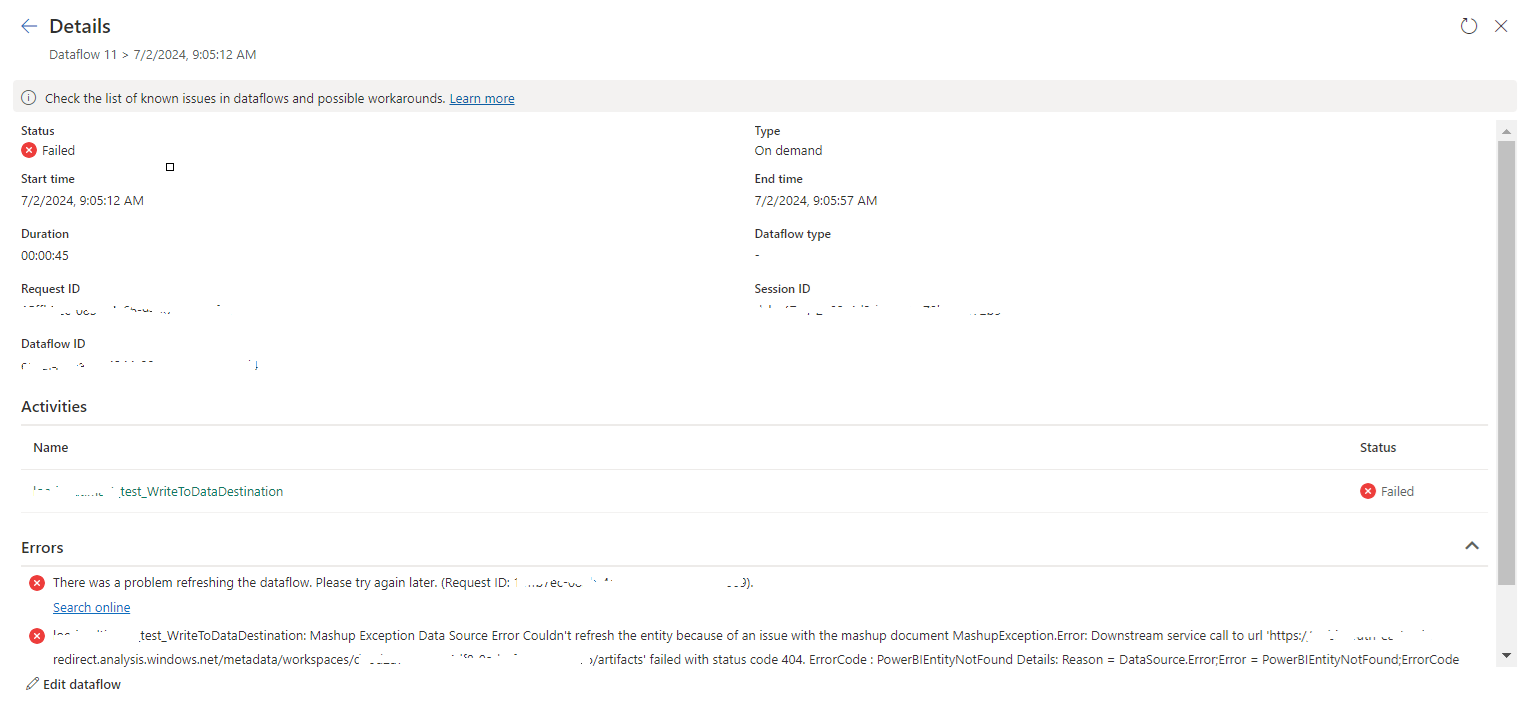
tablename_WriteToDataDestination: Mashup Exception Data Source Error Couldn't refresh the entity...

 Once a Dataflow is created and published on Fabric, got the below error while refreshing the Dataflow. tablename_ WriteToDataDestination: M...